
Flying through virtual skies using flight simulators can be thrilling, but it’s not without its challenges, especially when using laptops or PCs with integrated graphics. These setups often lack the graphical muscle found in dedicated GPUs, which can pose serious limitations in terms of performance, particularly in graphics-heavy tasks like flight simulation. It’s a bit like trying to run a marathon in flip-flops; you might get there in the end, but it’s not going to be smooth or easy.
In this article, I focus specifically on two popular flight simulators: X-Plane 11 and Aerofly FS 4. They’re both known for their rich environment and detailed simulations, but how do they perform on a device without a dedicated graphics card? That’s the question I set out to answer with some real-time testing.
The objective is straightforward: see how these two simulators handle the picturesque yet dense urban environment of downtown Paris. The idea is to measure performance based on my actual flying experience using the Lenovo IdeaPad Slim 3. This laptop packs an AMD Ryzen 7 5825U processor, 16 GB RAM, and integrated Radeon graphics, typical of many mid-range laptops today.
By focusing on true-to-life observations rather than theoretical specs or online reviews, I provide insights into the potential bottlenecks and benefits of each simulator when running on integrated graphics. This not only helps in understanding their capabilities but also provides practical advice for sim enthusiasts working with similar hardware constraints.
Testing Setup: Setting the Stage for Fair Comparisons
To ensure the results were as consistent as possible, I laid out a testing setup focusing on environmental consistency. My test bed was the Lenovo IdeaPad Slim 3, which includes an AMD Ryzen 7 5825U, 16 GB of RAM, and integrated Radeon graphics.
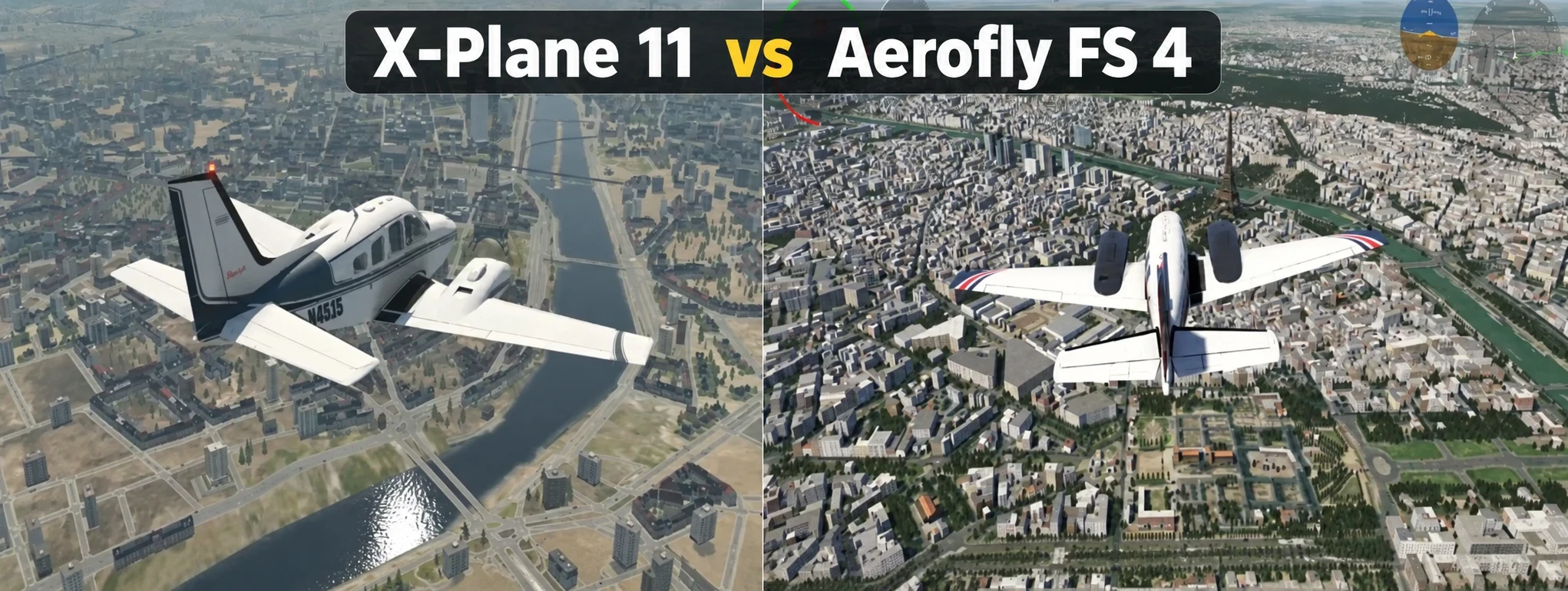
The testing conditions were specifically chosen to replicate a flight over a dense cityscape, showcasing both the simulators’ capabilities and the challenges of handling such scenarios without a dedicated GPU. I picked downtown Paris, a visually detailed and demanding environment, with the iconic Eiffel Tower as a key landmark to ensure visual consistency throughout the flights.
Flight conditions were kept uniform using the Beechcraft Baron, maintaining the same flight route and altitude across both simulators. This consistency is useful when comparing frame rates (FPS) and visual performance, since major differences in flight path or conditions could affect the results.
By executing the test flights without modifying any other settings beyond graphics, I was able to observe how each simulator handled performance and scenery rendering with the built-in hardware. This approach reflects the type of conditions a typical user might face when flying on integrated graphics.
Performance Analysis: X-Plane 11 vs Aerofly FS 4 on High Settings
Running both simulators on high graphics settings really puts integrated graphics to the test. With X-Plane 11, I noticed the FPS range fluctuated between 12 to 22 FPS. Now, while this might seem low at first glance, it actually managed to maintain a certain level of detail across Paris. The abundance of auto-generated buildings provided a pretty dense and detailed view of the city, though every so often, you’d notice an FPS hike as the density of scenery varied.

Aerofly FS 4, on the other hand, floated mostly around a steadier 12 to 14 FPS. While these numbers might not sound impressive, the performance was surprisingly consistent, barely dipping or spiking dramatically. The visual appeal stayed strong throughout my flight, maintaining dense building coverage with good detail, though I did note the absence of road traffic that X-Plane would typically include.
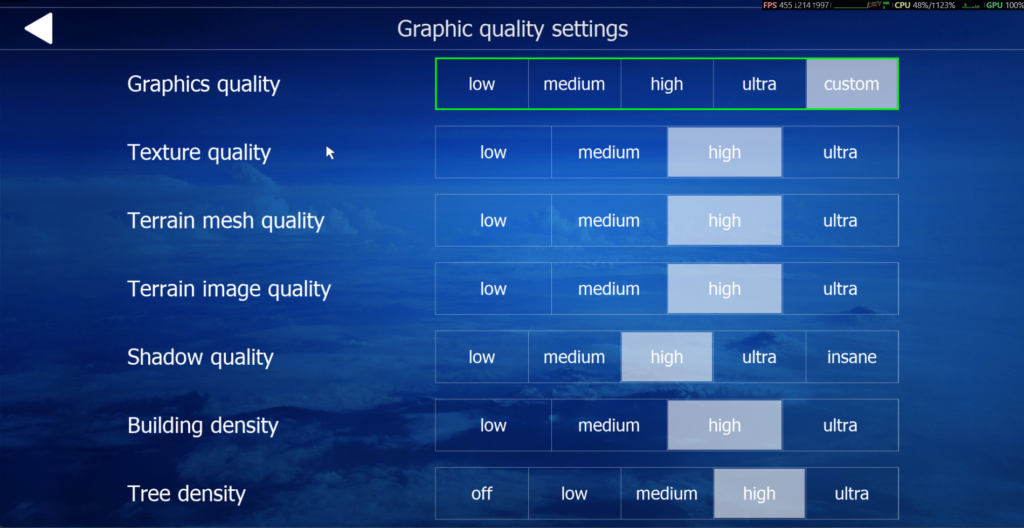
What stood out was how the simulators dealt with denser areas. X-Plane, while being more dynamic in showing a wider variety of buildings, sometimes felt choppier when rendering highly populated scenes. However, Aerofly FS 4, despite its modest FPS, held onto a narrower and more consistent frame-rate range across different sections of the route.
Given these insights, it’s clear that the comparison on high settings was not as straightforward as I first expected. X-Plane 11 sometimes reached higher FPS but also fluctuated more, while Aerofly FS 4 stayed within a narrower range. Integrated graphics were being pushed hard in both simulators, and the better experience may depend on whether you value scenery detail or more consistent frame rates.
Exploring Low Settings: A Balance Between Performance and Quality
Switching both simulators to low graphics settings marked a noticeable change in performance. With X-Plane 11, FPS surged to a range of 25 to 33, which is quite the leap from the high settings. Sure, the trade-off is a reduction in building density and detail, but the landmark Eiffel Tower still stood proudly visible, reminding you of your flight route over the expansive cityscape.
In Aerofly FS 4, the FPS jump was even more significant, reaching the low-50s. That’s a level of smoothness that really enhances the flying experience, even if it comes at the cost of dialed-down scenery complexity. While the buildings weren’t as dense as on high settings, the visual quality remained appealing enough to ensure an engaging flight perspective.
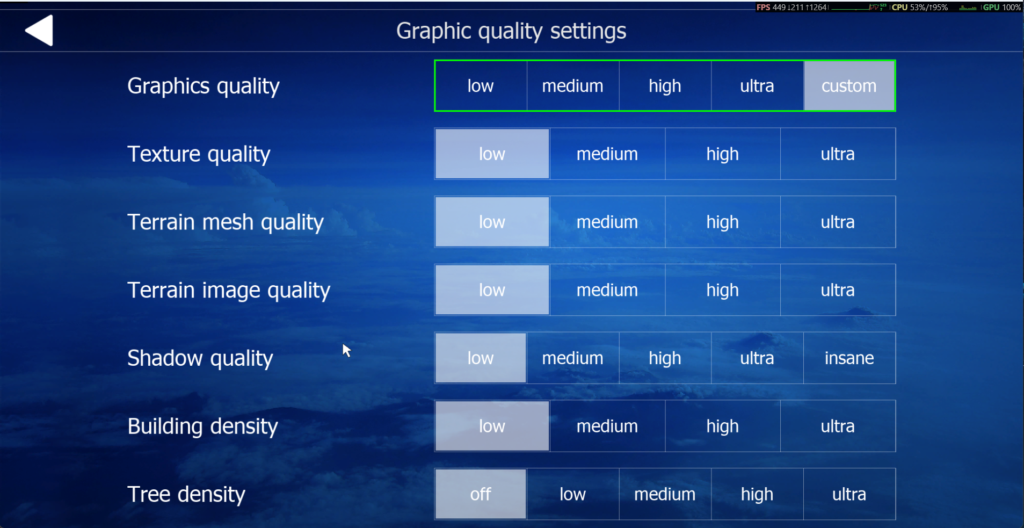
The key takeaway here is knowing when to compromise on visual fidelity for better performance. For integrated graphics users, turning down the settings can mean smoother flying and a better overall feel.
These tests highlight the true impact of graphical settings on integrated graphics. You might lose some of the flashier scenic details at lower settings, but the payoff in performance was substantial in my tests, showing that even without dedicated graphics, both simulators could become much more usable after reducing the settings.
Key Findings: Insights from Real-World Testing
Through these tests, it’s clear that each simulator has its distinct strengths and quirks. One major finding is how both X-Plane 11 and Aerofly FS 4 adapt performance relative to the density of the scenery. X-Plane 11 impresses with its ability to display a broad variety of structures at high settings, though sometimes at the expense of smooth FPS.
In contrast, Aerofly FS 4 maintained a steadier frame-rate range during my high-setting test, with fewer dramatic dips or rises. The FPS itself was still low at around 12 to 14, so the consistency did not necessarily mean the simulator was running comfortably at those settings.
The theme of compromise becomes apparent as scenery complexity plays a pivotal role in shaping FPS outcomes. Integrated graphics setups benefit significantly from tweaking these graphical settings to find that sweet spot between visual beauty and functional performance.
Interestingly, before diving into this comparison, there was a strong expectation that Aerofly FS 4 would outperform X-Plane 11 outright on integrated graphics. While it did pull ahead when visuals were dialed back, the difference at high settings wasn’t as pronounced as anticipated.
These insights reinforce the idea that actual in-flight performance can differ from published system requirements or common assumptions. Tailoring the simulator settings based on what your hardware can truly handle is key to making the most of your flight simulation experience.
Which Simulator is Better for Integrated Graphics Users?
Choosing between X-Plane 11 and Aerofly FS 4 ultimately comes down to what you value most in your flight simulation experience. In my low-setting test, Aerofly FS 4 had the clear performance advantage, reaching the low-50 FPS range compared with 25 to 33 FPS in X-Plane 11. At high settings, however, the comparison was less straightforward. X-Plane 11 ranged from 12 to 22 FPS, while Aerofly FS 4 stayed more consistently around 12 to 14 FPS.
On the other hand, if you find yourself drawn toward rich, expansive scenery and don’t mind dialing down settings for more FPS, X-Plane 11 offers a broad array of visually detailed environments. It showcased more varied scenery in parts of my test, including road traffic that I did not see in Aerofly FS 4.
This comparison sheds light on the real-world viability of both simulators running on integrated graphics, encouraging users to focus on their specific needs and preferences rather than just numbers and system requirements. Trying different settings and exploring the nuances of each simulator can genuinely enhance your flying experience.
In essence, there’s no one-size-fits-all when it comes to flight simulation on integrated graphics. My results do not show that one simulator wins in every situation. It’s about trial, error, and finding what makes your simming most enjoyable, whether it’s by optimizing performance for smoother flights or keeping more scenery detail while accepting lower FPS.
Frequently Asked Questions
Can X-Plane 11 run on integrated graphics?
Yes, X-Plane 11 can run on integrated graphics, but performance depends heavily on the settings, scenery complexity, aircraft, and weather. In my Paris test, performance improved significantly when I reduced the graphics settings.
Can Aerofly FS 4 run on integrated graphics?
Yes. In my testing, Aerofly FS 4 also ran on integrated Radeon graphics, and performance improved substantially at lower settings. At high settings, the FPS remained much lower.
Which performed better on low settings?
In my test, Aerofly FS 4 had the stronger result on low settings, reaching the low-50 FPS range, while X-Plane 11 ranged from about 25 to 33 FPS.
Which performed better on high settings?
The high-settings comparison was less clear. X-Plane 11 ranged from about 12 to 22 FPS, while Aerofly FS 4 stayed more consistently around 12 to 14 FPS.
Does higher FPS always mean a better experience?
Not necessarily. FPS is important, but stability, stuttering, scenery quality, and how responsive the simulator feels also matter. A stable frame rate can sometimes feel better than a higher but more inconsistent one.
Should I use low settings on integrated graphics?
Low settings can provide a large performance improvement, especially on hardware without a dedicated GPU. The best approach is to test different settings and decide how much visual quality you are willing to trade for smoother performance.
What My Testing Showed
My testing showed that both X-Plane 11 and Aerofly FS 4 can be usable on integrated graphics, but the experience depends heavily on the settings you choose.
Aerofly FS 4 showed a stronger performance advantage when the graphics were reduced, while X-Plane 11 offered denser and more varied scenery in parts of my test. At higher settings, neither simulator produced especially strong performance on my laptop.
The biggest lesson from this comparison is that system requirements and assumptions only tell part of the story. Testing the simulator on your own hardware, with the settings and scenery you actually use, gives a much clearer picture of what is playable and what compromises are worth making.
If I were prioritising smooth performance on integrated graphics, I would choose Aerofly FS 4 at lower settings. If I wanted more scenery variety and did not mind lower FPS, I would still consider X‑Plane 11.
Hello,
I appreciate your time and effort in putting together this relatable piece.
Trying to squeeze a complex flight sim out of integrated graphics could really be challenging. I remember trying to load up a heavy scenery addd-on on an old laptop during a quick evening over Prague; it wasn’t funny!
My quick question is this: have you ever experimented with adjusting the rendering scale or using a third-party optimization tweaks on these integrated setups to see if you can claw back a few extra frames without totally ruining the view?
Kind regards,
– Makinde
Hi Makinde,
Thanks for sharing your experience. I can relate to that because heavy scenery can make a big difference on integrated graphics, especially on an older or budget laptop.
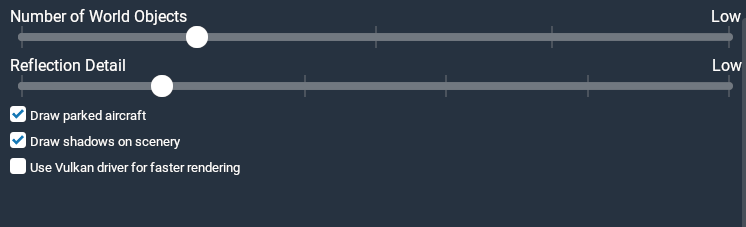
I experimented with render scaling and also tried some Lua-related scripts in X-Plane 11. The scripts helped improve FPS and reduce stuttering, but I also noticed that the number of World Objects was reduced. Because of that, I preferred going back to the default settings and adjusting the simulator manually instead.
I also tried Vulkan rendering on my older laptop, but in my case it actually lowered the FPS rather than improving it. That showed me that an optimization that helps one system may not necessarily help another.
For me, the best approach is to make small changes one at a time and compare both performance and visual quality rather than gaining FPS at the cost of too much scenery detail.
This comparison offers a valuable real-world perspective on how X-Plane 11 and Aerofly FS 4 perform on integrated graphics. I particularly appreciate the consistent testing conditions and the focus on balancing visual quality with usable frame rates. The results show why hardware specifications alone cannot determine the actual user experience, especially in demanding environments like dense cityscapes. The emphasis on adjusting settings to find the right balance is practical advice for flight simulation enthusiasts using budget or mid-range hardware.
Hi Kavitha,
Thanks for your thoughtful comment. I was actually expecting Aerofly FS 4 to achieve higher FPS even in a dense city like Paris, especially because it is often considered a good option for lower-end PCs. On High settings, though, the performance was lower than I expected.
When I reduced the settings to Low, the FPS increased into the 50s and was much higher than what I was getting in X-Plane 11 under similar conditions. That showed me how much the graphics settings can change the experience, even on the same integrated-graphics laptop.
That’s why I prefer testing different settings in real situations instead of relying only on system requirements or general assumptions.