
Last updated on September 24th, 2026 at 12:25 pm
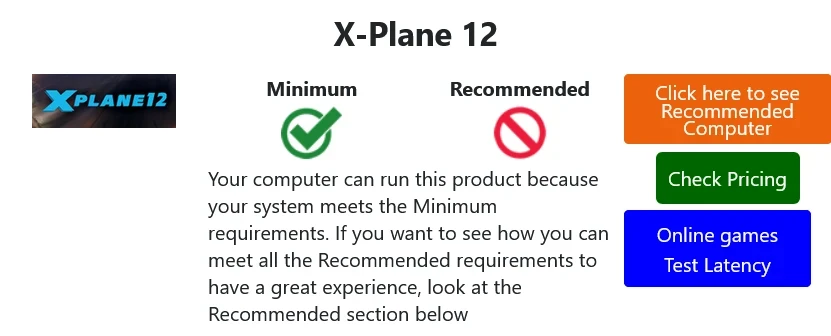
In my beginner guide, I explained how to start flight simulation on a low-end or mid-range PC. In this article, I want to focus more specifically on system requirements and what actually happened when I tested different simulators on older and newer laptops.
Official system requirements are useful, but they do not always tell the full story. A simulator may technically run on a computer, but that does not always mean the experience will be smooth, comfortable, or enjoyable. This is especially true with flight simulators because scenery, weather, airports, aircraft, and graphics settings can all affect performance.
From my experience, the difference between “can run” and “runs well” is very important. A simulator might launch, but if the frame rate is too low or the aircraft feels delayed during takeoff and landing, the experience can become frustrating for beginners.
Over the years, I have tested different flight simulators on my older HP laptop, my Ryzen 7 Lenovo laptop with integrated Radeon graphics, and more recently an MSI gaming laptop with an RTX 5060. I also used System Requirements Lab to compare the hardware with the listed requirements before looking at how the simulators actually performed in real-world use.
My Experience Checking MSFS 2020 on an Older HP Laptop
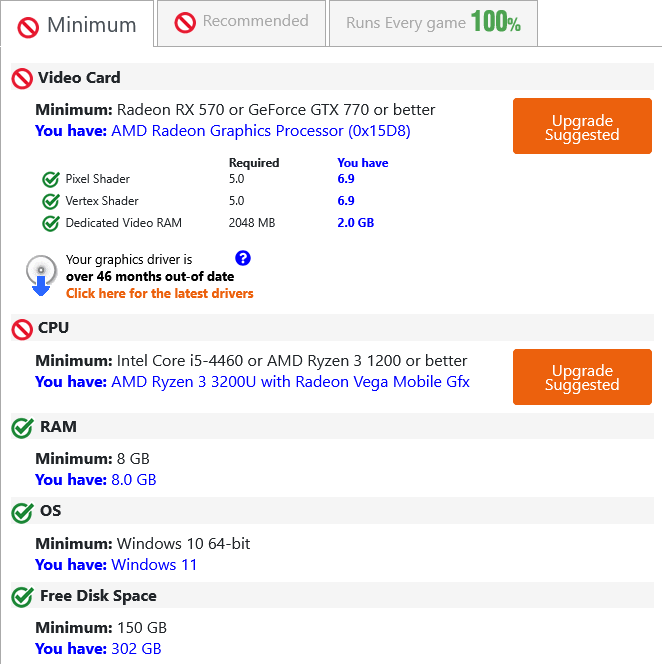
When Microsoft Flight Simulator 2020 was released, I wanted to see if it would work on my older HP laptop. Before installing it, I used System Requirements Lab to check whether the laptop met the minimum requirements.
The result showed that my laptop did not meet the minimum requirements. I still tried installing Microsoft Flight Simulator 2020 anyway to see what would happen, but the installation repeatedly failed before it could complete. Because of that, I was not able to properly test MSFS 2020 on that older laptop.
That experience taught me that system requirements matter, especially with large and demanding modern simulators. If a system checker shows that a laptop does not meet the minimum requirements, it does not always mean you can never try, but it does mean you should expect problems. In my case, I could not even get to the point of testing performance in flight.
Trying MSFS 2020 on My Ryzen 7 Laptop
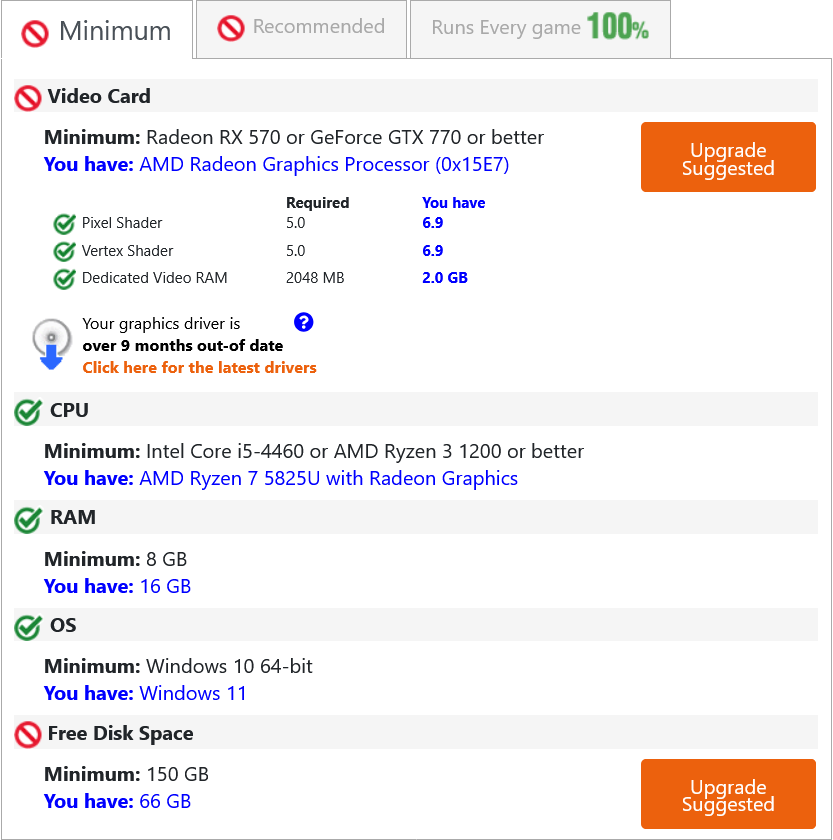
After the failed Microsoft Flight Simulator 2020 installation on my older HP laptop, I wanted to see if I would have better luck with my newer Ryzen 7 laptop. I ran System Requirements Lab first, hoping the newer laptop would meet the requirements.
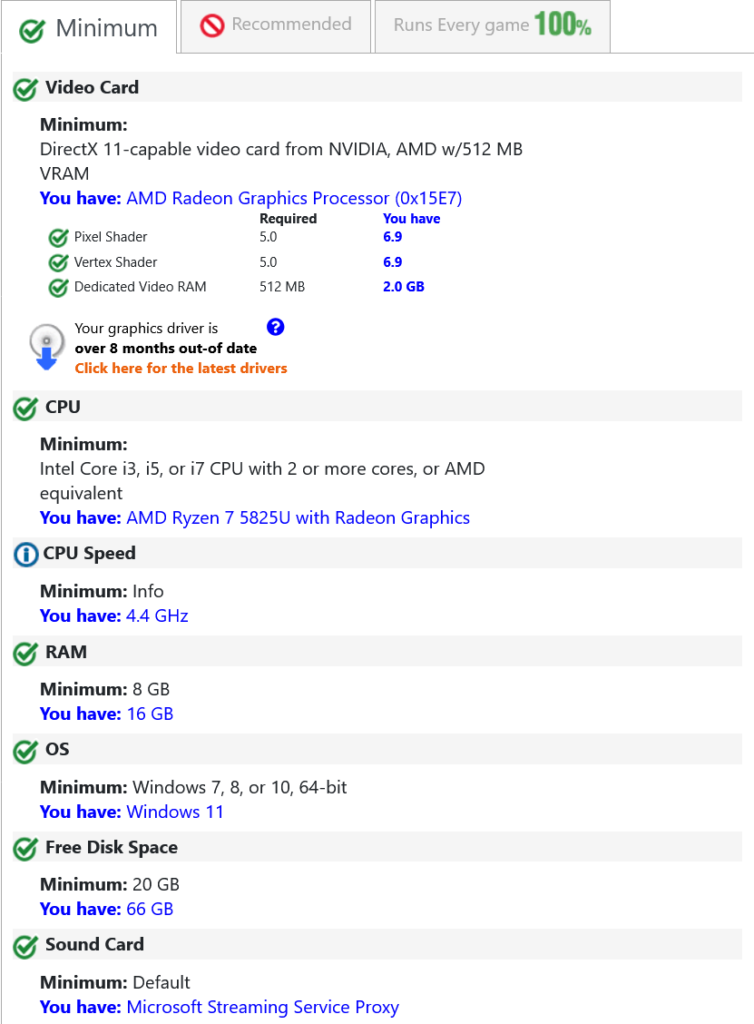
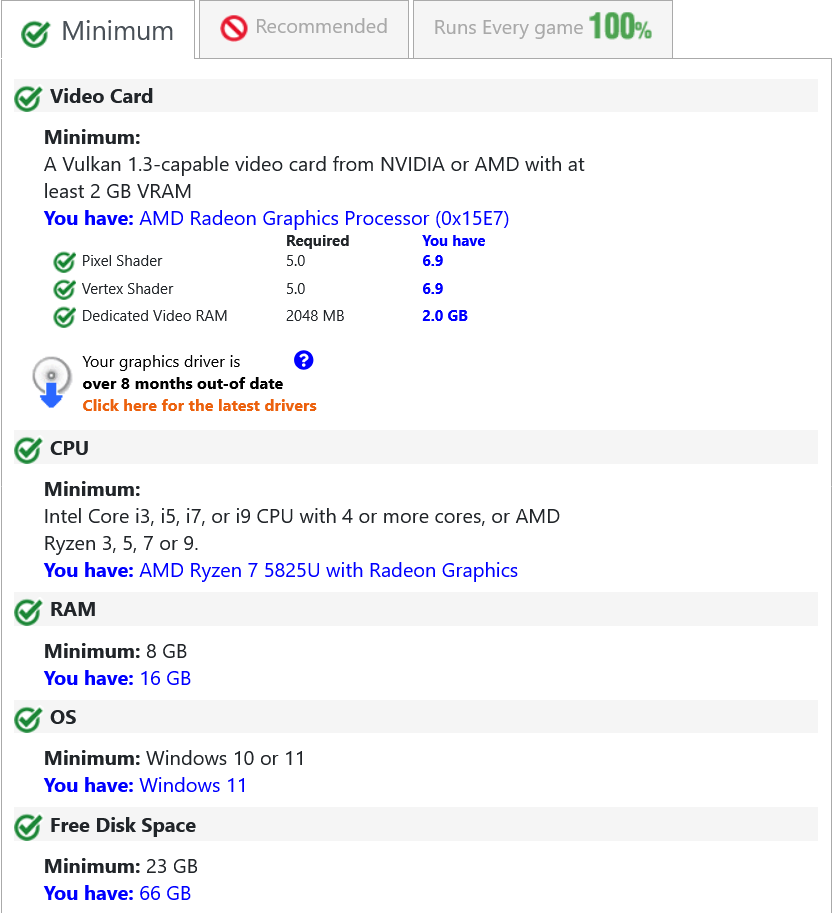
The result showed that it still did not meet the minimum or recommended requirements. My Ryzen 7 5825U processor and 16 GB of RAM passed the minimum check, but the integrated Radeon graphics did not meet the minimum graphics requirement. The checker listed a Radeon RX 570 or GeForce GTX 770 or better as the minimum.
The test also showed that I had 66 GB of free disk space at the time, while 150 GB was required. This meant I would need to free up more storage before attempting the installation.
Although my newer laptop is a significant improvement over my older HP laptop, this check showed that the integrated graphics were still below what Microsoft Flight Simulator 2020 required.
FSX and X-Plane 11 on Older Hardware
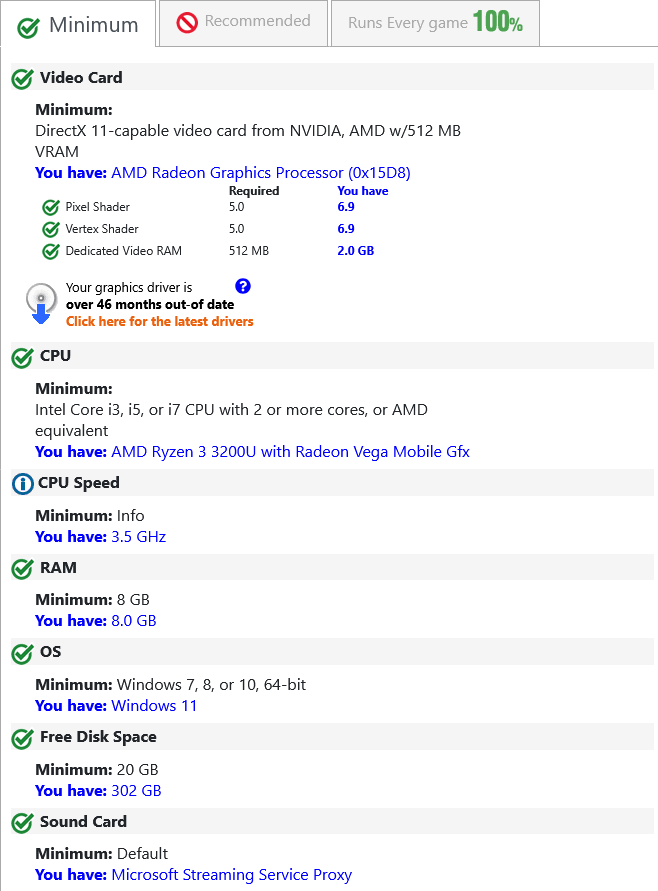
After the MSFS 2020 installation failed, I went back to Flight Simulator X for a while. FSX was easier to run on older hardware, but the simulator showed its age compared to newer flight simulators. The scenery and visuals felt dated, and I personally found the aircraft control and landing responsiveness less comfortable.
I also tried X-Plane 11 on the older HP laptop near Chicago airport. It did run, but the frame rate was too low for comfortable flying. At high settings, the FPS was usually under 10. At low settings, it improved slightly to around 10–12 FPS, but it still was not smooth enough for regular flying, especially near a large airport area.
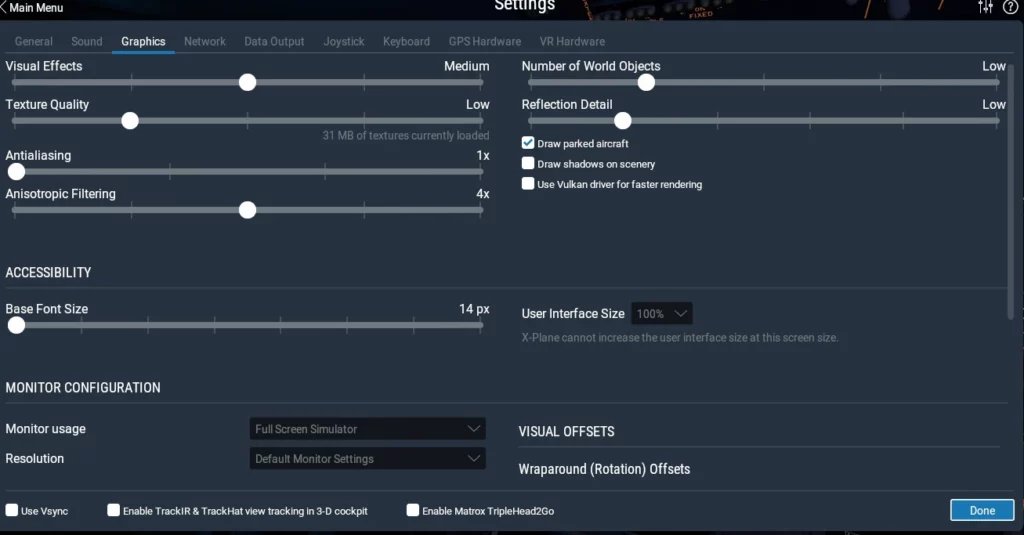
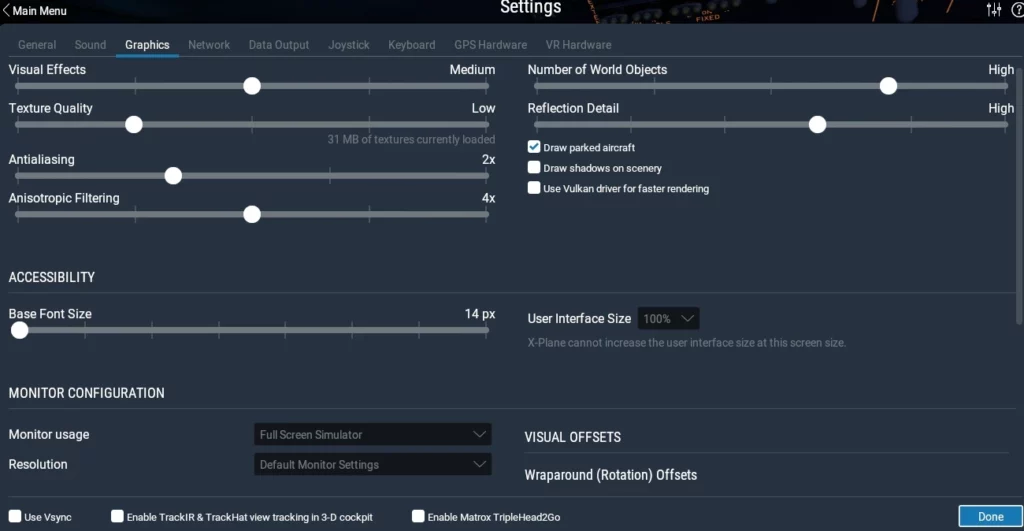
That is one of the biggest lessons for beginners using older PCs. A simulator may open and run, but if the frame rate is low or the controls feel delayed, learning to fly becomes more difficult.
X-Plane 11 on My Ryzen 7 Laptop
After upgrading to my Lenovo laptop with a Ryzen 7 processor, 16 GB of RAM, and integrated Radeon graphics, my experience changed significantly. X-Plane 11 performed much better on the newer laptop, especially after adjusting the graphics settings.
I recorded a Beechcraft Baron 58 flight over Honolulu, Hawaii, with the frame rate displayed during the flight. The FPS was around 25 most of the time and occasionally reached into the 30s. Compared to my older HP laptop test near Chicago airport, where the frame rate was much lower, X-Plane 11 felt noticeably smoother and more comfortable to fly on the Ryzen 7 laptop.
Performance can still change depending on the location, scenery, weather, and other settings, but this test showed a significant improvement over my older laptop and provided a much more enjoyable flying experience. I later tested how to balance visual quality and FPS on a low-end PC, where I compared different graphics settings in X-Plane 11 to see which gave me the best mix of smoothness and visual quality.
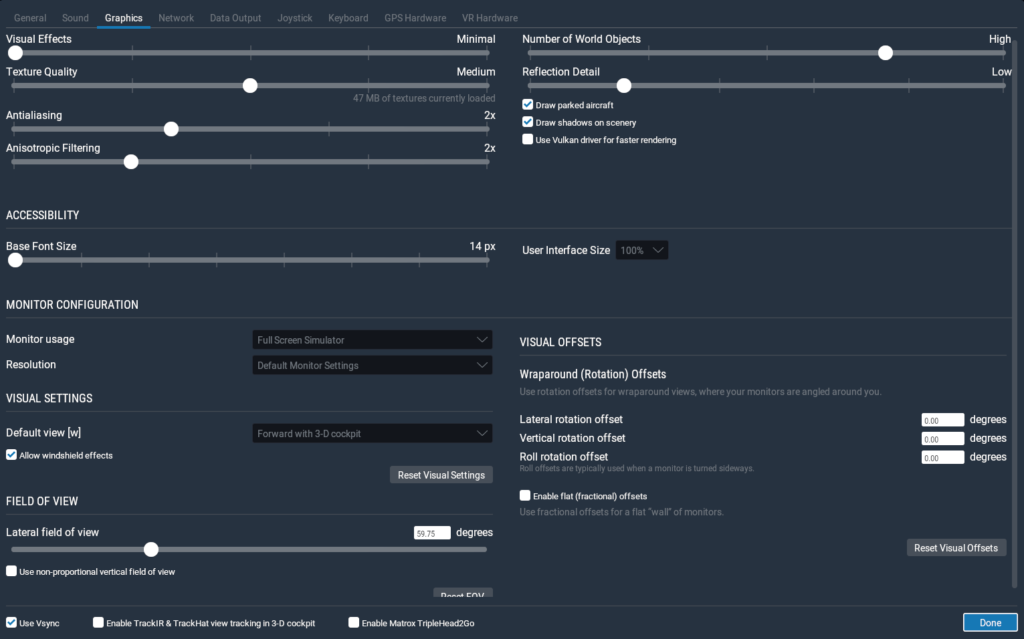
This is a good example of why system requirements are only a starting point. My laptop did not meet the recommended level, but real-world performance was still usable because I adjusted the settings and avoided pushing the simulator too hard.
✈️ Aerofly FS 4 on My Ryzen 7 Laptop
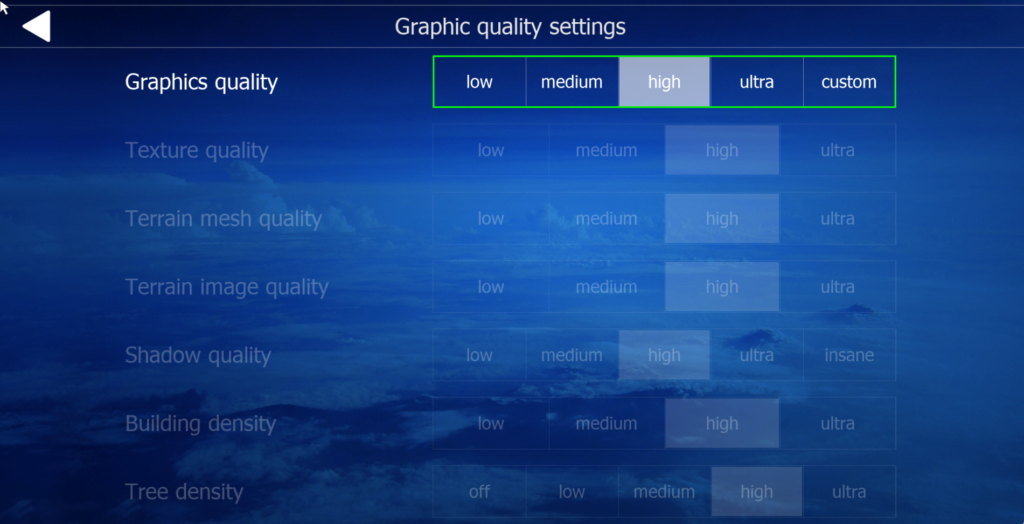
I had heard that Aerofly FS 4 could perform well even on lower-end PCs, so I decided to give it a try on my Ryzen 7 laptop with integrated Radeon graphics. I could not find Aerofly FS 4 on System Requirements Lab, so I tested it directly on my laptop instead.
Aerofly FS 4 performed very smoothly during my testing. During a flight over Honolulu, Hawaii, I found it noticeably lighter on the system than X-Plane 11 and able to maintain stable performance. Although the scenery was not as detailed as X-Plane 11, it still looked good and provided an enjoyable flying experience. I compared both simulators more directly in my X-Plane 11 vs Aerofly FS 4 performance test on integrated graphics.
For users with low-end PCs or those who prioritize smooth performance over maximum scenery detail, I think Aerofly FS 4 is a good option, especially for shorter flights.
X-Plane 12 Demo on the Same Laptop
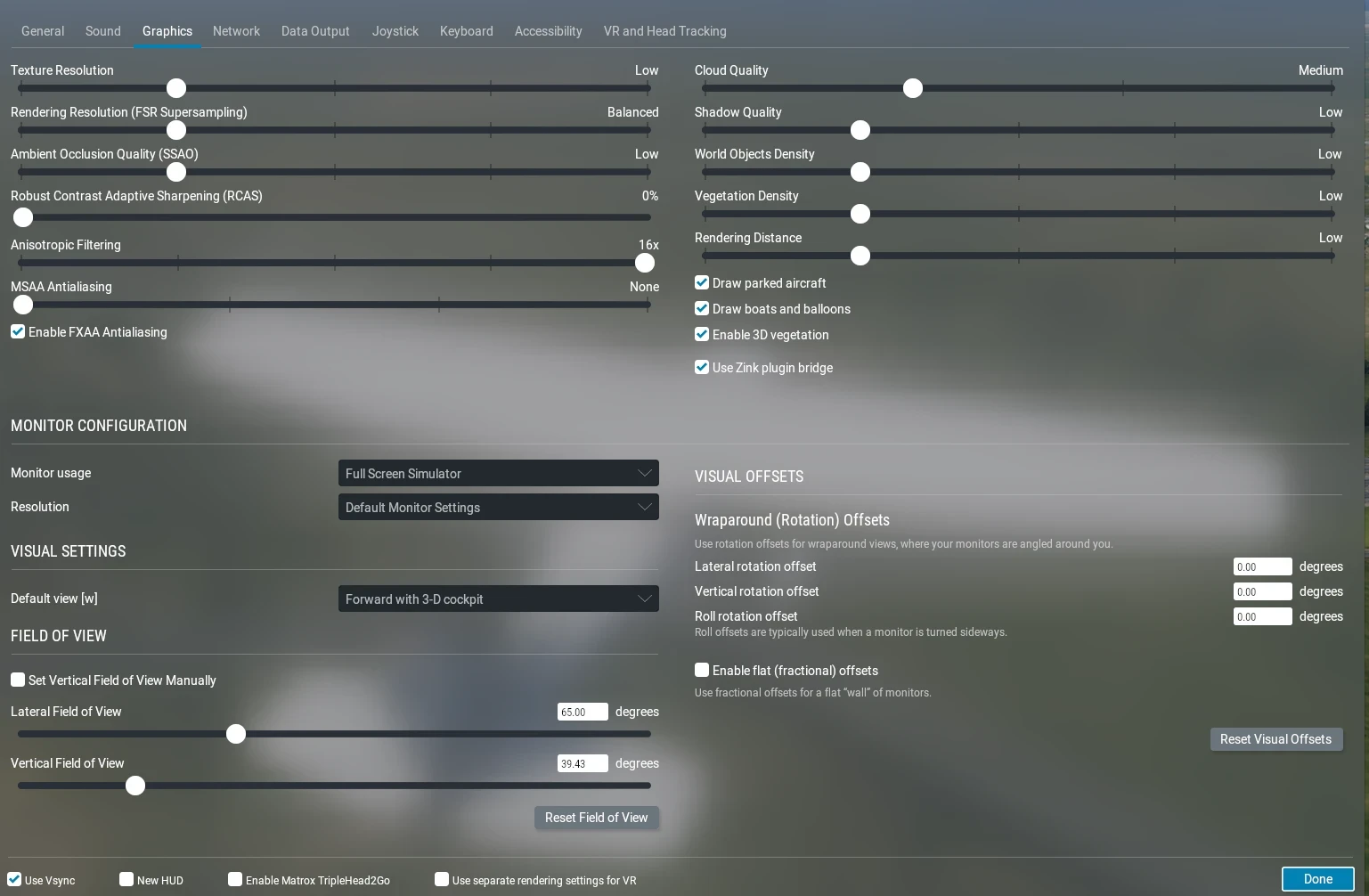
The X-Plane 12 Demo did run on my Ryzen 7 laptop, but the frame rate was noticeably lower than X-Plane 11. When I launched the simulator, I saw a message indicating that the settings would be automatically lowered. During my test flight from Portland airport using the Cessna 172, the FPS stayed around 9–11 FPS.
This showed me that X-Plane 12 was much heavier on integrated graphics. Even with automatically lowered settings, the experience was not as smooth as X-Plane 11 on the same laptop. This does not mean X-Plane 12 is bad, but it showed me that newer simulators can require stronger hardware for a comfortable flying experience, even when they technically run on a mid-range laptop.
This is where the difference between system requirements and real-world performance becomes clear. A simulator can launch and allow you to fly, but if the frame rate is low, the experience may not feel comfortable for regular use.
I later tested the X-Plane 12 Demo again using the Boeing 737-800 after taking off from Portland, Oregon. This time I was running the simulator in Safe Mode because trying higher settings had caused it to crash. During this flight, the frame rate was around 13–14 FPS, which was slightly better than my earlier test. I also recorded a video of this flight so the actual performance can be seen during the test.
Revisiting X-Plane 12 on My New Laptop
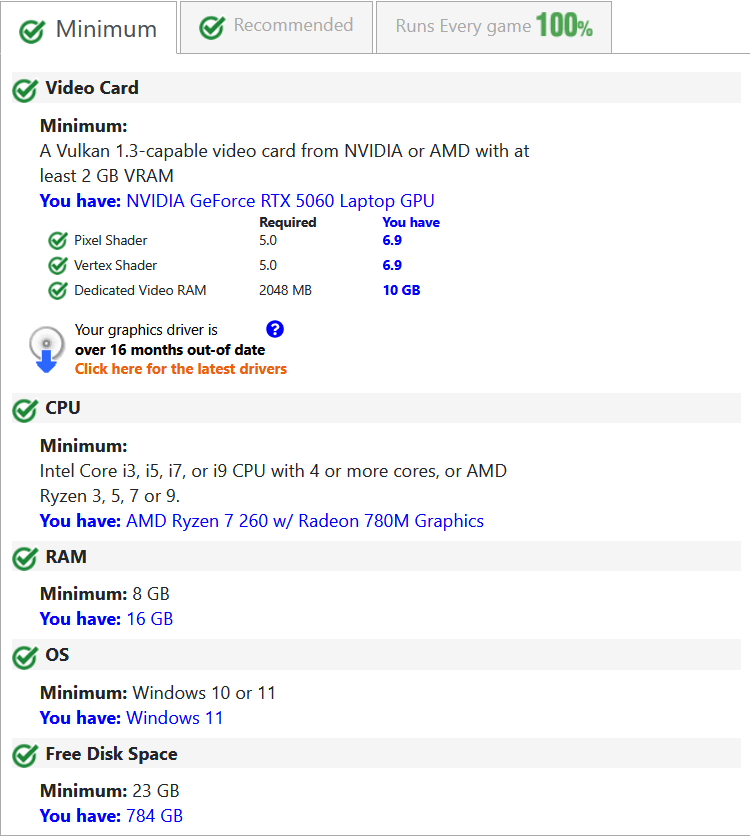
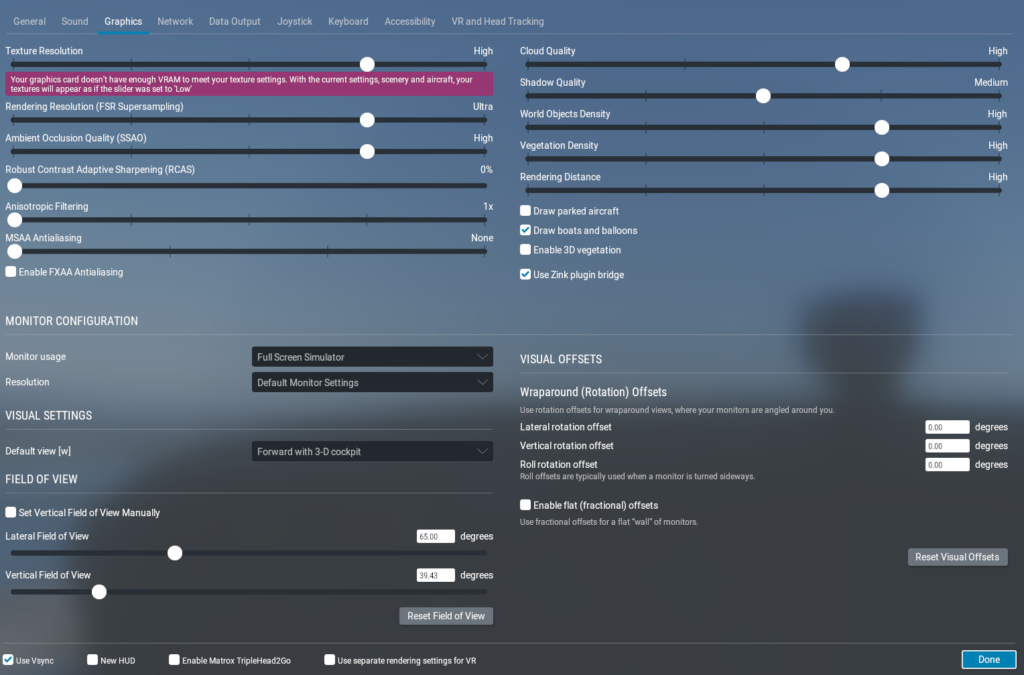
Later, after upgrading to an MSI gaming laptop with an NVIDIA RTX 5060, 8 GB VRAM, 16 GB RAM, and a 1 TB SSD, I decided to revisit X-Plane 12. This gave me a useful comparison with my earlier Portland demo test on the Ryzen 7 laptop with integrated Radeon graphics.
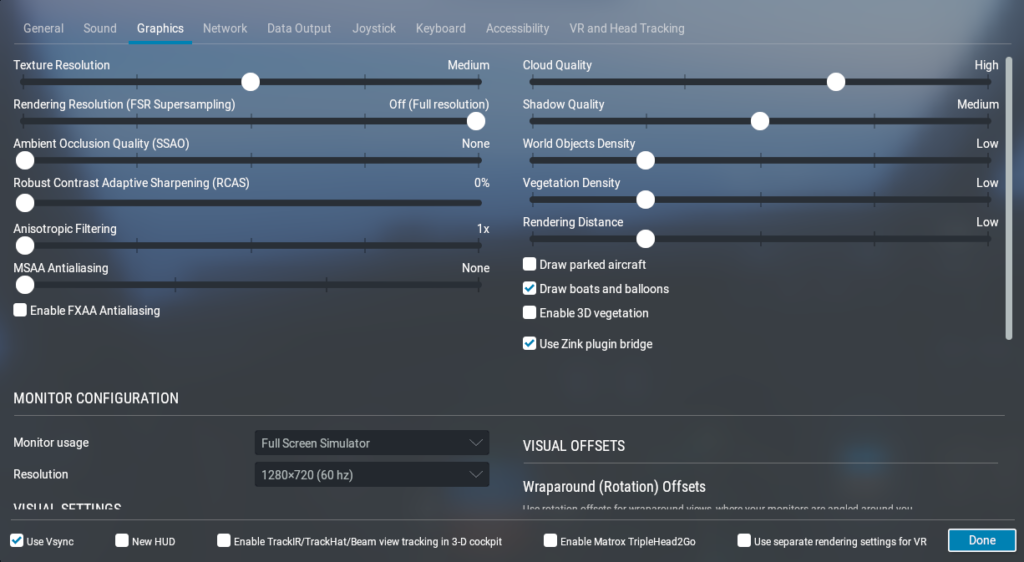
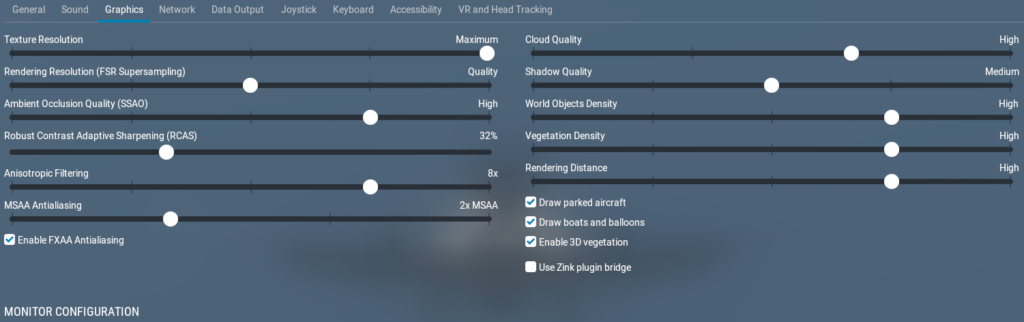
On my older Ryzen 7 laptop, the X-Plane 12 demo at Portland with the Cessna 172 stayed around 9–11 FPS and did not feel comfortable for regular flying. On the new RTX 5060 laptop, the experience was very different. X-Plane 12 ran much more smoothly, and after takeoff with the Cessna 172 over Portland, FPS was generally in the 70s and occasionally reached the 80s, both from inside the cockpit and in exterior views.
I also captured new settings screenshots and a video of the Cessna 172 over Portland on the new laptop. This made the difference between system requirements and real-world performance even clearer to me. The simulator had technically run on my older laptop, but the newer hardware gave me a much more usable and enjoyable experience, with significantly higher FPS and much more room to increase visual quality.
Quick Summary of My Results
| Simulator | Hardware | Result |
|---|---|---|
| MSFS 2020 | HP Ryzen 3, 8 GB RAM | Installation failed |
| MSFS 2020 | Lenovo Ryzen 7, 16 GB RAM | Did not meet graphics requirements |
| FSX | HP Ryzen 3 | Ran, but felt dated |
| X‑Plane 11 | HP Ryzen 3 | Usually under 10 FPS |
| X‑Plane 11 | Lenovo Ryzen 7 | Around 25–30 FPS, much smoother |
| Aerofly FS 4 | Lenovo Ryzen 7 | Smooth performance |
| X‑Plane 12 Demo | Lenovo Ryzen 7 | Around 9–14 FPS |
| X‑Plane 12 | MSI RTX 5060 | 50–80+ FPS depending on scenario |
Why Minimum Requirements Can Be Misleading
Minimum requirements usually mean the simulator can start and run under basic conditions. They do not always guarantee smooth performance at detailed airports, in bad weather, with AI traffic, or with higher graphics settings.
Flight simulators are demanding because they process many things at once. The aircraft, scenery, weather, lighting, terrain, airport details, and controls all affect performance. On low to mid-range PCs, integrated graphics can be one of the biggest limits, especially in newer simulators.
Recommended requirements are usually closer to what you need for a more comfortable experience, but even those are not perfect. Performance still depends on settings, updates, drivers, cooling, background programs, and the type of flight you are doing.
Playable FPS vs Comfortable Flying
One thing I learned is that playable FPS and comfortable flying are not always the same thing. A simulator may be technically playable, but if the frame rate drops during approach or landing, it can affect control.
I explored this in more detail during a complete X-Plane 11 flight from Toronto to Ottawa, where I compared playable FPS versus comfortable flying during the gate, takeoff, cruise, approach, landing, and taxi phases.
For beginners, smoothness matters a lot. Takeoff and landing already require practice, and low FPS can make small control inputs feel delayed. In my experience, a stable and responsive simulator is more useful than higher graphics settings with stutters.
This is why I prefer balanced settings on mid-range hardware. Medium or optimized settings may not look as impressive as ultra settings, but they often provide a better learning experience.
Practical Tips for Low to Mid-Range PCs
For beginners using low-end or mid-range PCs, I recommend starting with realistic expectations. Do not assume that meeting minimum requirements means the simulator will run smoothly in every situation.
Start with lower or medium graphics settings, then increase settings slowly while testing performance. Pay attention to scenery density, reflections, shadows, weather, AI traffic, and airport detail because these can affect frame rate. For more settings I’ve tested, my 10 flight sim settings tweaks for budget hardware covers options such as scenery, reflections, shadows, weather, and other performance-related settings.
It also helps to close unnecessary background programs, keep the laptop cool, and avoid installing too many heavy add-ons at once. Some add-ons can improve the simulator, but complex aircraft, large scenery packages, or too many plugins can reduce performance. If X-Plane 11 feels inconsistent or starts stuttering, I also documented my experience in an X-Plane 11 stuttering and FPS guide for budget laptops.
If a simulator offers a demo, like X-Plane 12, testing the demo first is useful. It gives you a better idea of how the simulator actually performs on your own hardware before spending money.
Frequently Asked Questions
Are minimum system requirements enough for flight simulators?
Not always. Minimum requirements usually indicate that a simulator can start and run, but they do not guarantee smooth performance in all situations.
Why did X-Plane 11 perform differently on my two laptops?
Hardware plays a major role in flight simulator performance. My older HP laptop struggled to run X-Plane 11 smoothly, while my Ryzen 7 laptop delivered a much better experience after adjusting graphics settings.
Can integrated graphics run modern flight simulators?
Yes, but results vary depending on the simulator and settings. In my experience, Aerofly FS 4 and X-Plane 11 were more manageable on integrated graphics than the X-Plane 12 Demo.
Does meeting the minimum requirements mean X-Plane 12 will run smoothly?
Not necessarily. My Ryzen 7 laptop could launch and run the X-Plane 12 Demo, but performance was too low for the experience I wanted. My later RTX 5060 laptop gave me much more performance headroom and allowed me to use substantially higher graphics settings.
How much difference did a dedicated RTX 5060 GPU make?
In my X-Plane 12 testing, the difference was substantial. The demo on my Ryzen 7 integrated-graphics laptop was generally around 9–14 FPS in the tests I performed, while my RTX 5060 laptop was able to run much higher settings with significantly higher frame rates. At Portland with the Boeing 737-800, I saw FPS in the 50s to 60s on Ultra and up into the 70s at times on High settings.
Why is performance worse at large airports?
Large airports contain more scenery, buildings, aircraft, and airport details that increase the workload on the computer. This often leads to lower frame rates compared to rural areas or smaller airports.
Is a flight simulator still usable at low FPS?
Sometimes. A simulator may still be technically playable at lower frame rates, but smoothness and aircraft control can become more difficult, especially during takeoff and landing.
Should I try a demo before buying a simulator?
Yes. If a simulator offers a demo version, testing it on your own hardware can provide a much better idea of real-world performance than system requirements alone.
What Real-World Testing Showed Me
System requirements are helpful, but they are not the full story. My experience across three different laptops showed this clearly. Microsoft Flight Simulator 2020 would not install successfully on my older HP laptop, X-Plane 11 struggled on that same hardware, and X-Plane 12 was very demanding on my Ryzen 7 laptop with integrated graphics.
After moving to an MSI gaming laptop with an RTX 5060, X-Plane 12 became a completely different experience. I was able to use much higher graphics settings while getting substantially higher FPS, including strong results at Portland and much more usable performance at JFK.
For me, this reinforced the difference between a simulator simply being able to run and having enough hardware headroom to run it comfortably. System requirements give you a starting point, but actual testing on your own hardware tells you much more.
Hi Elamin,
This article was easy to understand and I liked how you showed the real difference between “can run” and “runs well.” Your older and newer laptops tests made the concept clearer for me. It helped me see why smooth FPS matters more than fancy graphics. In overall your article gave fair amount of understanding on this concept. Thank you very much for sharing these useful information. I just wonder; do you think X‑Plane 11 is still the best choice for weak laptops in the future as well?
Hi Shafna,
Thank you for your thoughtful comment. I’m glad the article helped explain the difference between “can run” and “runs well,” because I actually learned that lesson the hard way myself. I assumed X-Plane 12 would run well on my Lenovo laptop since it met the minimum requirements, but factors like detailed airports, live weather, and large cities can easily impact performance.
As for your question, I still think X-Plane 11 is one of the best choices for weaker laptops. Despite being older than X-Plane 12, it’s still very realistic and delivers a much smoother experience. Compared to FSX, it offers a better balance of modern flight dynamics and performance, making it a great option for learning and enjoying flight simulation without high-end hardware.
Thanks again for your kind words and for joining the discussion!
This is a really honest and useful breakdown — the kind of real-world testing that’s hard to find amid all the marketing-driven “minimum requirements” charts. The X-Plane 11 vs X-Plane 12 comparison on the same Ryzen 7 laptop really drives home how much heavier newer sims can be, even when the spec sheets look similar on paper.
I went through something similar with MSFS 2020 on an older machine — it technically launched, but between approach stutters and laggy control response, it actually made landings harder to learn, not easier. Your point about playable FPS versus comfortable flying captures that perfectly.
The tip about testing demos before buying is something I wish I’d done earlier; it would’ve saved me a lot of trial and error. Thanks for sharing actual screenshots and FPS numbers instead of vague claims; that level of detail is genuinely helpful for anyone planning a budget setup.
Hi Andrejs,
Thank you for sharing your experience. I agree that system requirements only tell part of the story. A simulator may technically run, but real-world performance can change a lot when flying around dense cities, large airports, complex scenery, or different weather conditions.
That’s why I tested X-Plane 11 and X-Plane 12 on the same Ryzen 7 laptop instead of relying only on the numbers on paper. Smooth FPS and responsive controls make a big difference, especially during approaches and landings.
Testing before buying is definitely helpful. The X-Plane 12 demo from the official website is a good option, although it’s limited to certain areas. I also tried X-Plane 12 through Steam, but since it didn’t perform as expected on my laptop, I requested a refund and it was processed successfully.
Thanks again for your feedback. I’m glad the real-world tests and comparisons were useful!
I can imagine how disappointing it would be to spend time installing a flight simulator, finally get it to open, and then realize the controls feel too delayed to actually enjoy learning. That difference between “it launches” and “I can comfortably practice landings” is something beginners probably do not think about enough. Your real laptop examples make it feel much more practical than just reading a requirements chart. When testing a weak or mid-range PC, would you recommend using the same short route and airport every time, so the FPS comparison is fair?
Hi Hanna,
Thanks for your thoughtful comment. I agree that there is a big difference between a simulator simply launching and providing a smooth experience that’s comfortable for learning takeoffs and landings.
In my experience, frame rates tend to be lower around dense cities and large airports, while smaller airports usually perform much better. Once you’re in the air, especially over rural areas with fewer buildings and less scenery, FPS often stays noticeably higher.
To answer your question, I think it’s best to start testing with a small aircraft and experiment with the settings before moving to larger aircraft. Flying between smaller airports can give you a good baseline for performance. If you later switch to major airports, the FPS may drop, but it can still be playable depending on your hardware and settings.
For example, on my system, flying around rural areas during the day or at night generally provides better performance, while larger airports such as Toronto or New York tend to produce lower FPS, especially when using higher graphics settings.
Thanks again for your great question!
Your real-world testing on both older and newer laptops perfectly captures the gap between “can run” and “runs well,” which is exactly what budget-conscious simmers need to hear before investing in a new title. I really appreciate how you highlighted the difference between playable FPS and comfortable flying, especially since low frame rates during critical phases like landing can actually hinder the learning process for beginners. It would be interesting to explore how specific settings like scenery density or AI traffic impact performance across different simulators, as those variables often cause the biggest drops in real-world scenarios. Your practical advice on testing demos first and balancing settings over chasing ultra graphics is a solid strategy that could save many newcomers from frustration and unnecessary refunds. Thank you for sharing your honest hardware experiences, as this kind of grounded testing is far more valuable than any official spec sheet.
Hi Ropata,
Thank you for your thoughtful comment. Based on my own experience and testing, that was exactly my goal because I initially thought meeting the minimum requirements would always mean a smooth flying experience.
I also noticed that changing AI traffic can make a difference. For example, when I added three AI aircraft, the frame rate dropped noticeably with the Boeing 747-400. However, using aircraft like the Boeing 737-800 and MD-82 gave me better performance. Of course, the results depend on the hardware, graphics settings, and simulator version.
That’s why I usually recommend experimenting with different settings before deciding to upgrade to the latest simulator version. Thanks again for sharing your thoughts!
Hey there, fellow writer! Thanks for sharing your real-world experience instead of relying only on the published hardware requirements. I think many people discover that “meeting the minimum requirements” doesn’t always translate into an enjoyable experience.
In your opinion, which simulator offers the best balance between realism and performance for someone using a mid-range laptop today?
Hi John,
Thank you for your thoughtful comment. I completely agree that meeting the minimum requirements doesn’t always guarantee a smooth or enjoyable flying experience. I learned that myself after testing different simulators on my laptops.
In my opinion, X-Plane 11 offers one of the best balances between realism and performance for a mid-range laptop. It runs much smoother than X-Plane 12 on my Lenovo laptop while still providing a realistic flying experience. Using balanced graphics settings also makes a noticeable difference.
When I eventually upgrade to a gaming laptop or PC, I plan to install Microsoft Flight Simulator 2020 and X-Plane 12 again to compare their performance on more capable hardware.
Thanks again for your great question and for taking the time to share your thoughts!
Your article provides an honest and practical perspective by comparing official system requirements with real-world performance across different hardware configurations. I particularly appreciate that you share both successful and unsuccessful experiences, as this gives beginners realistic expectations and reinforces the importance of testing graphics settings, frame rates, and simulator demos before investing. From a communication standpoint, presenting personal experience alongside practical recommendations makes the content more credible, relatable, and valuable for readers who are choosing their first flight simulator.
Hi Kavitha,
Thank you for your thoughtful comment. I’m glad you found the comparison helpful. I aimed to share both successes and challenges from testing different flight simulators on my laptops, since official system requirements don’t always match real-world performance.
Through testing, I found that balanced graphics settings often work better than using the highest or lowest options. I also encourage beginners to try demos when available and experiment with settings before considering hardware upgrades.
Thanks again for reading and for your kind words!
I used to play flight simulators many years ago, but as the kids came along and family life got busier, it became increasingly difficult to find the time. Over the years, though, I’ve watched flight sims change from being just games into something approaching genuinely realistic flying, even down to the physics…
I’m starting to get back into it now, and I’m still fascinated by it. I enjoy that feeling of confidence as you watch yourself improve, especially with take-offs and landings.
What’s your single favourite part of flight simulation?
Hi Ugo,
It’s good to hear that you’ve played flight simulators and noticed how much they’ve improved over the years, especially in aircraft physics, scenery, and realism.
My favourite part of flight simulation is takeoff and landing, especially the approach. I enjoy seeing myself improve with practice, whether it’s lining up with the runway, controlling the speed and altitude, learning the cockpit layout, or checking the map during the flight. I also enjoy flying to different cities and airports and seeing how the scenery changes along the route.
It’s great that you’re getting back into flight simulation, and thanks again for sharing your experience.
The “can run” vs “runs well” distinction is the part most spec sheets never admit to, and you nailed why it matters.
I come at this from the golf side rather than aviation. When I started looking at what it takes to run golf simulator software at home, I ran into the same wall you did with X-Plane 12 — the box says a mid-range machine handles it, then you actually load it up and the tracking gets choppy right at the moment you need it to be accurate. Different hobby, identical lesson. Minimum requirements tell you the program will open. They tell you nothing about whether you’ll enjoy using it.
What I appreciate here is that you posted the failure. The MSFS 2020 install that wouldn’t complete on the HP is more useful to a beginner than another glowing benchmark chart, because that’s the outcome a lot of people are actually going to get. Publishing the test that didn’t work builds more trust than ten that did.
One question. You mentioned Aerofly FS 4 ran lighter than X-Plane 11 on the same Ryzen 7. If a beginner came to you with a mid-range laptop and no prior sim experience, would you start them on Aerofly for the smoothness and let them move up later, or start them on X-Plane 11 so they aren’t relearning the controls six months in?
Hi Ron,
I had never heard of golf simulators before, but thanks for sharing your experience. I think you provided a good comparison because meeting the minimum requirements is only a guideline and doesn’t always mean the software will run smoothly all the time. It also depends on the settings, software, and PC. My unsuccessful tests were actually useful because they showed me the difference between what specifications suggest and what happens in real-world use.
For beginners, based on my experience, I think it’s best to start with Microsoft Flight Simulator or X-Plane 11. If you have a low-end laptop, Aerofly FS 4 may be a better option because it is lighter on the system and can provide smoother performance.
Ultimately, it depends on the user and whether they prefer smoother performance or a more detailed flight simulation experience.
I really enjoyed this comparison because it shows the difference between what a PC is supposed to run and what it can actually handle in real-world use. I’ve found that meeting the minimum requirements doesn’t always mean the experience will be smooth, especially around busy airports. The testing on the older and Ryzen 7 laptops makes this much easier to understand. I also like the advice about trying a demo before buying. Do you think beginners should prioritize smoother FPS over higher graphics quality when choosing a simulator?
Hi Mala,
Thanks again for sharing your experience. Based on my own testing, I think beginners should prioritize smoother and more consistent FPS, but that doesn’t mean graphics quality has to be reduced too much.
On my Lenovo Ryzen 7 laptop, I found that balanced settings gave me the best experience. I could keep good scenery and aircraft details while lowering demanding settings such as World Objects and anti-aliasing. This helped improve FPS, especially around larger airports and dense cities.
For me, smooth and consistent performance is more important than pushing everything to maximum graphics because it makes takeoffs, approaches, and landings more enjoyable.
I spent an entire weekend tweaking graphics configs and building a custom wooden throttle mount for a setup I haven’t even finished wiring yet! I always get so hyper-fixated on optimizing the specs and planning the ultimate budget cockpit, but then I get distracted by a new hobby before I even make it off the runway. I swear I’m going to bookmark this to finally finish setting up my sim tonight… right after I figure out where I put that flight stick.
Hi Leah,
That sounds familiar hahaha 🤣 . It’s easy to spend more time adjusting settings and planning the setup than actually flying.
I currently use a Logitech joystick with a built-in throttle. It’s almost six years old and still works fine, so I haven’t felt the need to replace it yet. I may upgrade to a separate throttle in the future if I feel I need one. Your custom throttle mount sounds like a fun project, especially for a budget cockpit.
Hopefully you find the flight stick and finally make it off the runway tonight!
Thanks again for reading and sharing your experience.