
Last updated on September 4th, 2026 at 08:38 pm
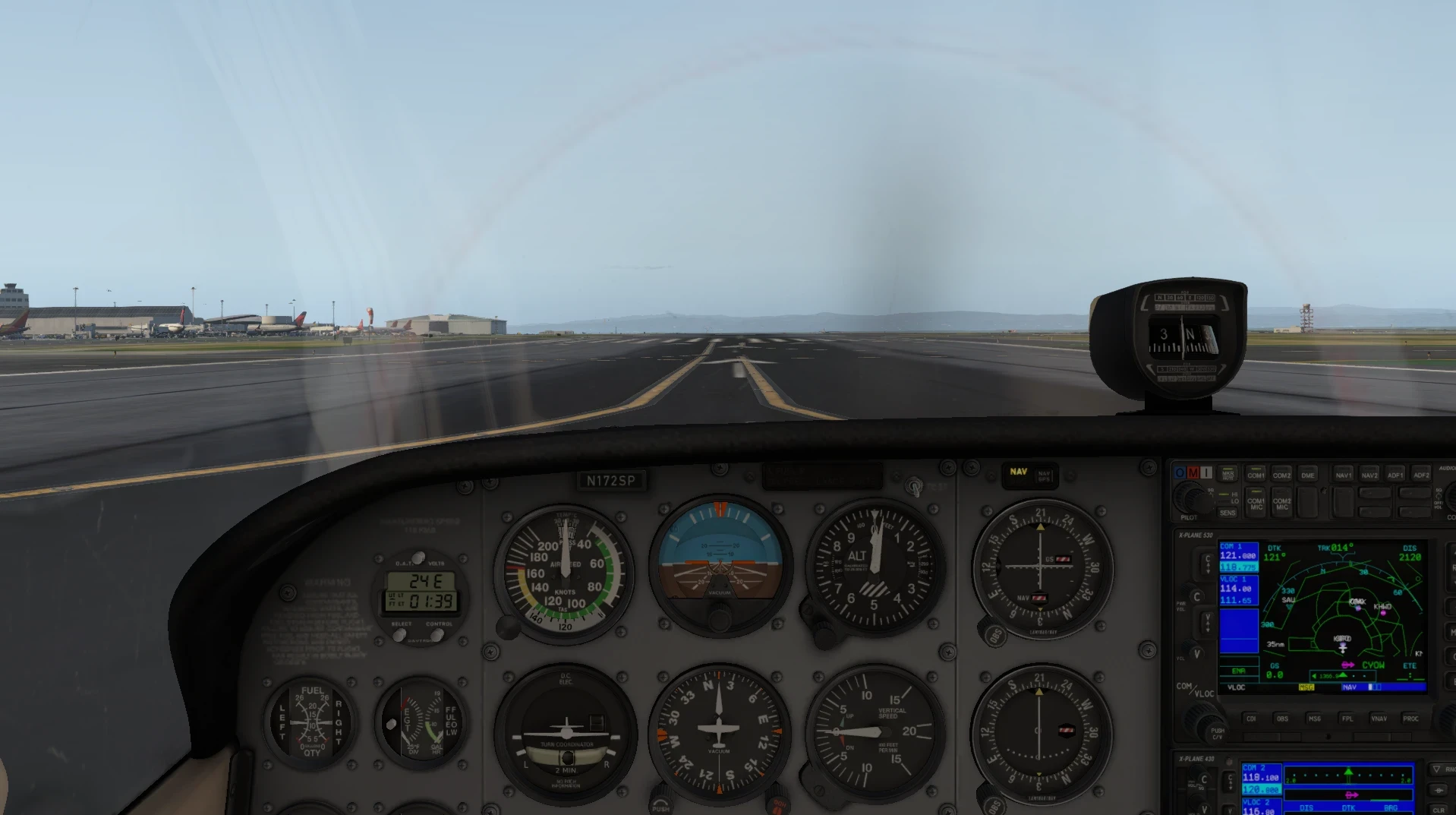
My interest in flight simulation started many years ago with Flight Simulator 2002 on an older computer. Compared to modern simulators, the scenery and graphics were very basic, but it still gave me the chance to explore a virtual world and learn the basics of flying for the first time. That early experience is what made me continue exploring flight simulation over the years.
As time went on, I became more curious and started trying different flight simulators on both older and newer laptops. I explored titles such as Flight Simulator X, X-Plane 11, Aerofly FS 4, and the X-Plane 12 Demo. Each simulator felt different depending on the system it was running on, especially in terms of smoothness and overall usability.
What I learned is that flight simulation can still be enjoyable on a low-end or mid-range PC, but the experience depends heavily on choosing the right simulator and having realistic expectations about performance and visuals. Some simulators are designed to run smoothly on weaker hardware, while others focus more on realism and require stronger systems.
Before choosing a simulator, it is also helpful to understand how official system requirements compare to real-world performance. I cover that topic in more detail in my article on Flight Simulator System Requirements Vs Reality On Low To Mid-Range PCs.
This journey helped me understand that flight simulation is not just about graphics or realism, but about finding a balance between performance and comfort that matches your PC.
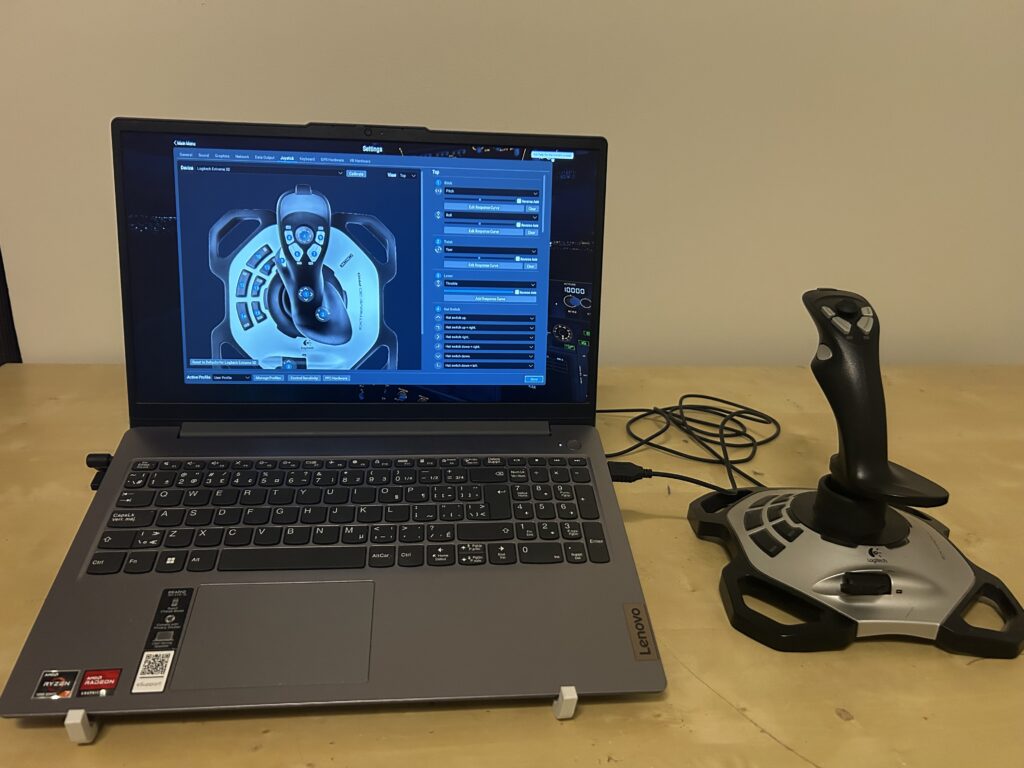
I have experienced flight simulation on both older and newer hardware. I previously used an older HP laptop with a Ryzen 3 processor, 8 GB of RAM, and integrated Radeon graphics, before upgrading to my current Lenovo laptop with a Ryzen 7 processor, 16 GB of RAM, and integrated Radeon graphics. Neither is a dedicated gaming laptop, but the upgrade gave me much better performance in simulators such as X-Plane 11.
Choosing the Right Flight Simulator
From my experience, each simulator fits a different type of user:
- Some are better suited for older or low-end systems
- Some focus more on realism and detailed environments
- Some are designed to balance performance and visuals
There is no single best option for everyone — it depends on your hardware and what kind of flying experience you want.
Getting Started as a Beginner
If you are new to flight simulation, the most important thing is not graphics quality, but comfort and smooth control.
A stable simulator that runs well on your PC will always be better for learning than a highly detailed simulator that struggles to perform.
Frequently Asked Questions
Getting started with flight simulation can feel overwhelming at first, especially when you’re trying to match a simulator to your hardware. Below are some common questions that many beginners ask before taking their first virtual flight.
Can I run a flight simulator on a low-end PC?
Yes, many flight simulators can run on low-end PCs, although you may need to lower graphics settings and choose simulators that are less demanding on hardware.
What is the best flight simulator for beginners with a budget PC?
The answer depends on your hardware and goals. Some simulators focus on performance and accessibility, while others prioritize realism and advanced features. It is often a good idea to try demos when available.
Do I need a gaming laptop for flight simulation?
Not necessarily. I use a Lenovo laptop with a Ryzen 7 processor, 16 GB of RAM, and integrated Radeon graphics. While it is not a dedicated gaming laptop, it can still provide an enjoyable flight simulation experience with the right settings.
Is graphics quality more important than smooth performance?
For beginners, smooth performance is usually more important. A simulator that runs comfortably will generally provide a better learning experience than one with higher graphics but frequent stutters or slowdowns.
Should I check system requirements before buying a flight simulator?
Yes. System requirements provide a useful starting point and can help you avoid downloading or purchasing a simulator that may not run well on your hardware.
Final Thoughts
Starting flight simulation on a low-end or mid-range PC is absolutely possible. My own experience has shown that you do not need an expensive gaming computer to enjoy virtual flying. The key is choosing a simulator that matches your hardware, adjusting settings when necessary, and focusing on smooth performance rather than maximum graphics.
Every simulator has its strengths and weaknesses, and part of the fun is discovering which one works best for your system and your flying goals. With realistic expectations and a willingness to experiment, you can build an enjoyable flight simulation experience even on modest hardware.
Are you getting started with flight simulation on a low-end or mid-range PC? Feel free to share which simulator you’re considering or what hardware you’re using. I’d be interested to hear about your experience.
There must be nothing more frustrating than having a great flight simulator, but a system that is not equipped to handle it. You have given some good advice here on starting with a simulator that matches your hardware instead of choosing the simulator only based on graphics. Trying out different test models is ideal if you can.
I am curious, are you a pilot in real life or do you just enjoy working with these flight simulators?
Hi Michel,
Thank you for your thoughtful comment. I totally agree with you—there’s nothing more disappointing than getting excited about a simulator only to find out your hardware can’t handle it. I actually experienced that myself with an old HP laptop that didn’t even meet the minimum requirements for MSFS 2020, so installing it wasn’t a realistic option.
That’s exactly why I wanted to emphasize matching the simulator to the PC rather than focusing only on graphics. As for your question, I’m not a real-life pilot—just a passionate flight simulation enthusiast who enjoys testing different simulators and sharing practical experiences that can help others get started.
Thanks again for your great comment!
This is a very helpful guide for beginners, especially because you explain things from real experience and not just from official system requirements. I liked the part where you said that a smoother experience with balanced settings is better than trying to push everything to maximum graphics. That is such practical advice, because beginners can easily think they need an expensive gaming PC before even starting. Your comparison between X-Plane 11, Aerofly FS 4, and Microsoft Flight Simulator also makes the choice feel less confusing. It is nice to see a guide that gives realistic expectations and still encourages people to enjoy flight simulation with the computer they already have.
Thank you so much for your thoughtful feedback, Hanna. I really appreciate your kind words.
My goal with this guide was to provide realistic, experience-based advice rather than simply repeating official system requirements, which often don’t reflect actual day-to-day performance. It is best for beginners to find the right balance between visual quality and smooth performance is far more important than chasing maximum graphics settings.
I’m also glad you found the comparison between X-Plane 11, Aerofly FS 4, and Microsoft Flight Simulator helpful. Each simulator has its own strengths and weakness, and choosing the one that best matches your hardware and interests can make the learning experience much more enjoyable.
Thanks again for taking the time to share your thoughts, and I hope the guide helps many new flight simulation enthusiasts get started with confidence before exploring virtual skies.
This is a great starting point for anyone hesitant to jump into flight simulation because they think they need top-tier hardware. The mindset shift you describe, prioritizing comfort and smooth performance over graphics quality, is exactly the advice I wish someone had given me when I started.
Your example of a Ryzen 7 laptop with integrated graphics is reassuring, too. It’s easy to assume flight sims require a dedicated gaming rig, but your experience shows that’s not always the case if you adjust your expectations and settings accordingly.
I also appreciated the FAQ section addressing whether checking system requirements really matters. Linking to your deeper dive on requirements versus real-world performance was a smart move for readers wanting more detail. Looking forward to trying X-Plane 11 myself based on this.
Hi Andrejs,
Thank you for your thoughtful comment. I’m glad you found the guide helpful. I agree that many beginners assume they need an expensive gaming PC to enjoy flight simulation, but finding the right balance between settings and performance can make a big difference.
My Ryzen 7 laptop experience showed me that even integrated graphics can provide an enjoyable experience with the right simulator and realistic expectations. X-Plane 11 is definitely a great place to start since it offers a good balance between realism, performance, and flexibility.
I hope you enjoy trying X-Plane 11, and thanks again for sharing your thoughts!
Hi! I enjoyed reading your guide. It brought back a memorable experience for me. Years ago a friend let me take the controls of a real helicopter while we were in flight. Even that brief experience gave me a much greater appreciation for the skill and concentration that flying requires. I like that you’ve shown beginners they don’t need a top-of-the-line PC to start enjoying flight simulation. Making the hobby more accessible is a great way to encourage new people to discover aviation. Thanks for sharing such a helpful guide!
Hi Bryce,
Thank you for sharing your experience. It’s great that you had the chance to take the controls of a real helicopter, even if only for a short time. That must have been an unforgettable moment and given you a greater appreciation for the skill involved in flying.
I’m glad you enjoyed my guide. At first, I thought an expensive gaming PC was the only way to enjoy flight simulation. However, after testing different flight simulators on my non-gaming laptop, I found that the experience was still very enjoyable with the right settings. Even many low-end PCs can provide a good flight simulation experience when expectations and graphics settings are balanced.
Thanks again for your thoughtful comment!
Thank you for sharing your experience. I really appreciate how you emphasized that successful flight simulation is about matching the software to your hardware rather than chasing the highest graphics settings. That practical, beginner-friendly approach highlights an important principle that also applies to communication skills—steady, comfortable progress builds confidence far more effectively than striving for perfection from the start.
Hi Kavitha,
Thank you for your thoughtful comment. I really like your comparison between flight simulation and communication skills. I agree that steady progress often leads to better results than striving for perfection from the beginning.
Through my own testing, I found that balancing the simulator settings with the hardware provides a much more enjoyable experience than simply pushing everything to the highest graphics settings. In many cases, balanced settings are enough to enjoy flight simulation while still keeping good scenery and buildings. I usually avoid very low or minimum settings unless the laptop barely meets the system requirements.
Thanks again for sharing your perspective and for taking the time to read my guide!
Yes, I’ve noticed as my machine ages, it can’t handle some of the newer simulator upgrades out there – it just freezes on the graphics card. Ah for the days when you could just buy a new one, open your tower and shove it in the slot! Cracking open a laptop is a whole ‘nuther animal. I was wondering what you thought of the freeware versions like FlightGear or GeoFS? I’ve heard they are pretty decent for free . . . ?
I never tried Flight Gear or GeoFS but they are free to play.
Hello,
I use a regular Dell laptop with 16 GB of RAM, not a gaming computer. Your advice to focus on smooth performance instead of the best graphics makes sense. Trying a demo before buying is also a good idea. Which simulator would you recommend first for a beginner using integrated graphics?
Thank you for this useful guide.
Makhsud
Hi Makhsud,
Thanks for sharing your experience. I also use a regular non-gaming laptop with 16 GB of RAM and integrated Radeon graphics.
For a beginner using integrated graphics, I would recommend X-Plane 11 if the laptop meets the requirements. I’ve been able to run it reasonably well on my Ryzen 7 laptop using balanced settings. Aerofly FS 4 is another good option, especially if smooth performance is more important, because I found it lighter on my system than X-Plane 11.
I would recommend trying a demo first when available, since performance can vary depending on the processor, integrated graphics, settings, and laptop.
This is a helpful guide for beginners who want to get into flight simulation without spending a fortune on a high-end PC. I have one question: which flight simulator would you recommend for someone starting out with a low- to mid-range PC? Are there any settings beginners should adjust first to improve performance while still keeping the experience enjoyable?
Hi Mala,
Thanks for your comment. Based on my experience, I would recommend X-Plane 11 for a low- to mid-range PC because it provides a good balance between realism and performance. Aerofly FS 4 is another good option for lower-end PCs because I found it lighter on my system.
For X-Plane 11, I recommend starting with balanced settings rather than using maximum or minimum graphics. On my laptop, I reduced World Objects from Maximum to High, used 2x anti-aliasing, and kept reflections low. This helped improve performance while still keeping the scenery enjoyable.
I also recommend starting with a smaller aircraft like Cessna 172 and mid size airport , then adjusting the settings based on how your PC performs.
Honestly, tweaking setting sliders in MSFS or X-Plane feels like a minigame in itself when you’re trying to stretch every drop of performance out of a mid-range rig! The tip on prioritizing CPU-heavy settings over pure eye candy is spot on, especially when working on a budget set-up. Definitely saving this guide to pass along to a few client buddies who keep asking how to get into simming without blowing $3k on a new PC.
Hi Leah,
Thanks for the kind words, I agree with you. Adjusting settings can feel like playing a game itself when you’re trying to get the best performance from a mid-range PC, and I’ve experienced that myself.
From my experience, you don’t always need an expensive PC to start flight simulation. Keeping the settings balanced and avoiding heavy add-ons can make a big difference while still keeping the experience enjoyable. I actually started with an older HP laptop. I tried to install Microsoft Flight Simulator 2020, but it failed because the laptop didn’t meet the requirements, so I used FSX instead. It was outdated, but at least it worked on my old HP.
Thanks again for reading and sharing the guide with others.