
Last updated on September 23rd, 2026 at 11:06 pm
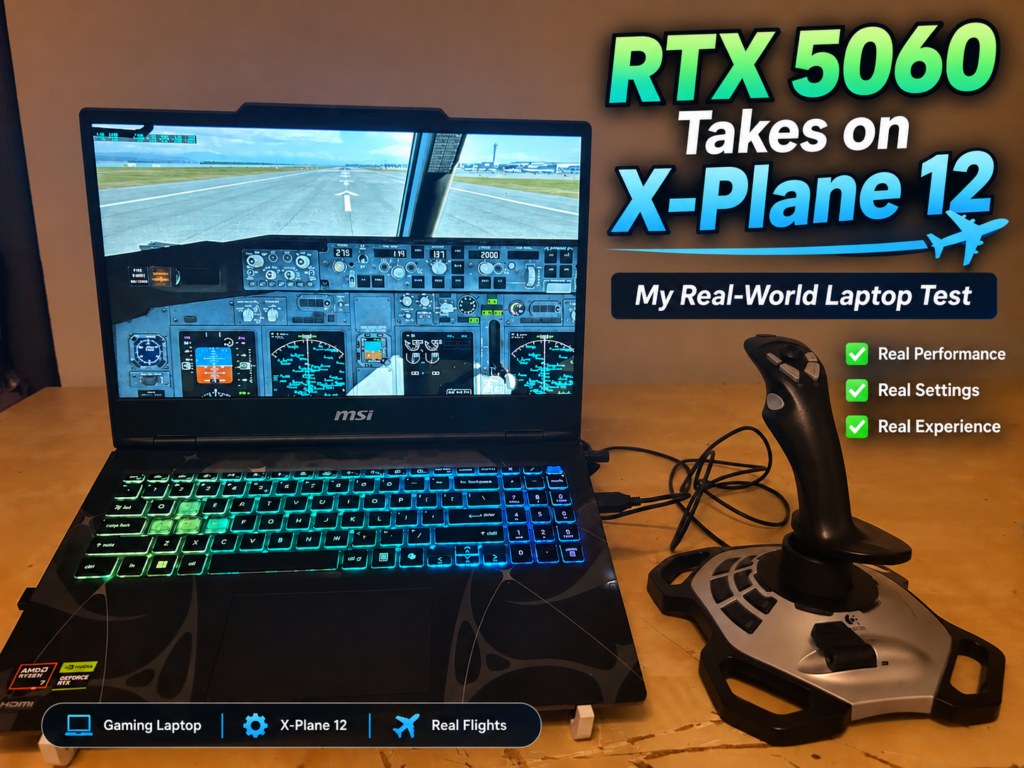
So, here’s my setup: I’m rocking an MSI laptop packed with an NVIDIA RTX 5060 card sporting a solid 8 GB of VRAM, 16 GB of RAM, and a nifty 1 TB SSD. Yeah, I would’ve jumped for 32 GB RAM if I could, but hey, I was curious to see how this puppy would handle X-Plane 12 right out of the box.
Let’s talk expectations. This isn’t some lab test. These are the real results I got from my particular setup. Your mileage may vary (and probably will), but I’m simply sharing the benchmarks and hiccups as I personally experienced them. It’s more about living in the moment and less about hitting picture-perfect performance.
Switching from my older Ryzen 7 laptop with integrated Radeon graphics brought a noticeable improvement, especially in graphics performance and the ability to use higher settings. It also reinforced what I found when looking at how flight simulator system requirements compare with real-world performance. I could finally increase the visual settings considerably while temperatures remained reasonable during my testing.
From higher graphics settings to the extra scenery detail, X-Plane 12 looked noticeably better while remaining smooth during most of my flights. Whether I’m soaring over detailed cityscapes or navigating busy airport traffic, this new MSI feels like a reliable co-pilot.
If you’re eyeing a similar setup, keep in mind the balance between wanting peak performance and what can truly run smoothly without turning into an overheating mess. I’ve got my laptop set up with a stand just to keep the airflow steady, and it helps keep everything running cool even during those intense sessions.
From the Demo to Portland: My First X-Plane 12 Performance Surprise
Starting off with the X-Plane 12 demo, I didn’t exactly know what to expect, especially with some settings daringly set to Ultra and broken clouds painting the sky. I figured it was as good a place as any to flex my new laptop’s muscles a bit.
Firing up the flight school, I was taken aback by the initial performance. Clocking in at a solid 40 FPS, even with some settings turned up, was a pleasant surprise. It sure set a hopeful tone for my future flights.
Portland Airport was next up on my list—a chance to truly give this setup a workout. The Boeing 737-800 was my choice of aircraft, and I tested it using both Ultra and High graphics settings. On Ultra, FPS was generally in the 50s to 60s. After reducing the settings to High, performance improved further, with FPS commonly in the 50s and 60s and occasionally reaching into the 70s. The difference was not dramatic in every moment, but High settings gave me a little more performance headroom while still keeping the scenery looking detailed.
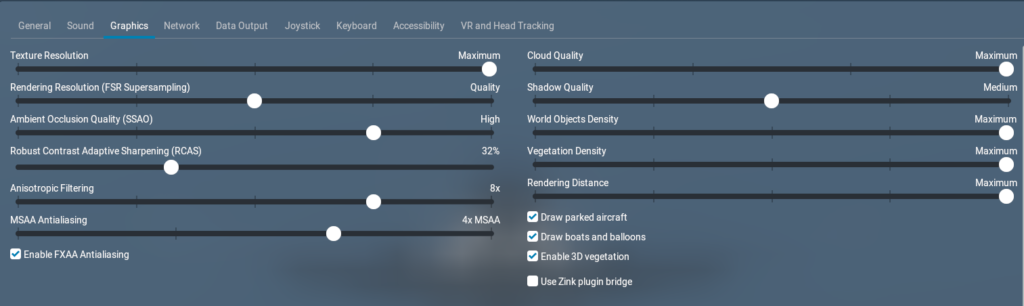
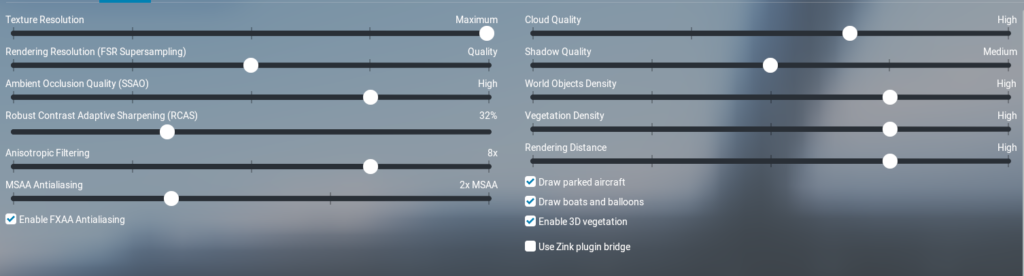
In comparison, the Airbus A330 didn’t fly quite as high with the frame rates, hanging around the 40s before takeoff but generally managing to hit the 50s once soaring. Not too shabby, but a noticeable dip considering the more advanced systems and complexity.
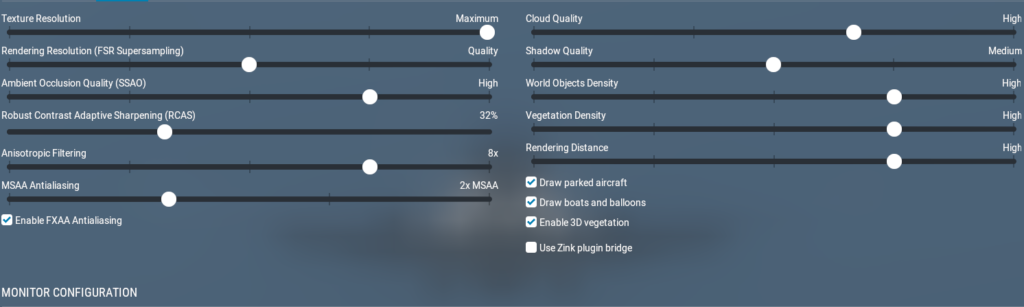
After seeing how well X-Plane 12 performed at Portland, I decided it was worth purchasing the full version. It was the confidence booster I needed because seeing it perform well enough in the demo reassured me that my laptop had what it takes—or at least something close to it!
For those testing out new setups: consider starting simple, perhaps with a demo or lighter scenarios, before throwing in heavier aircraft or more populated airports. The key is feeling out what the system can handle comfortably without losing that buttery-smooth experience we’re all after.
JFK, Ultra vs. High, and the Stutters I Actually Noticed
Jumping headfirst into the full X-Plane 12 version, JFK Airport became my testing ground—a bit more intense than Portland. JFK’s density promised a whole new level of challenge, and naturally, I was curious if my new laptop could keep up.
Using the Boeing 737-800, FPS stayed generally in the 30s on Ultra settings, both before and after takeoff. That was noticeably lower than what I saw at Portland, which showed just how much a dense airport environment like JFK can affect performance.

When I reduced the graphics settings from Ultra to High, the improvement was much more noticeable. FPS moved into the 40s and 50s, and in some situations it even reached the 60s. The simulator still looked detailed, but the extra performance headroom made the experience smoother.
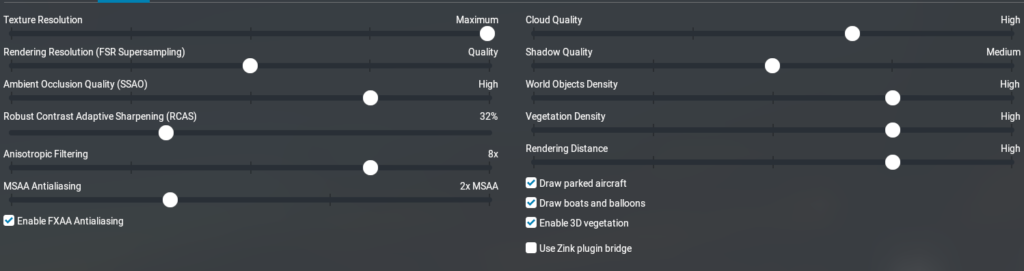
I also noticed a few brief stutters or sudden FPS drops in dense areas, especially on Ultra settings. Reducing some graphics options helped reduce those interruptions and made performance more consistent.
That little texture-resolution observation still stood out to me as well. I set Texture Resolution to Maximum once and noticed that FPS seemed to improve slightly. However, this was not a controlled test, so I would not claim that increasing texture resolution was the reason for the improvement.
For anyone experiencing similar performance issues, adjusting one setting at a time can help identify what works best.I use the same approach when benchmarking flight simulator performance so I can better understand which changes actually affect FPS. Reducing a setting by one level is perfectly fine if it improves smoothness, especially when the visual difference between Ultra and High is relatively small. This is the same kind of trade-off I look for when balancing visual quality and FPS, because the highest setting is not always the most practical one.
Heat, Fans, Visual Detail, and the Add-On Trade-Off
Let’s chat about keeping things cool, literally and visually. My experience with flights stretching over half an hour had me eyeing those CPU and GPU temp charts regularly. The CPU usually hung out in the 60s to 70s °C range, while the GPU chilled between 50s to 60s °C. Notably, my fans kicked in hard but never quite maxed out, which was okay. The fans ran at high speed but did not appear to reach maximum speed during these sessions and my setup stayed pretty pleasant to work with.
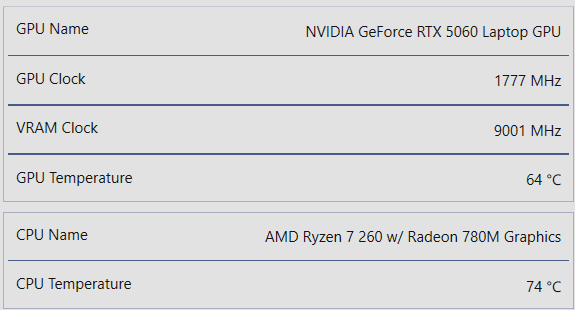
To help with airflow, I also use a laptop stand to improve airflow during longer sessions. It really works! In my case, it’s just about ensuring the laptop doesn’t overheat and maintaining consistent performance throughout those intense flights.
Comparing visuals, X-Plane 12 brought charm and then some over its predecessor. Cities and airports appeared with richer detail, runway visibility at night was clearer, even the addition of some previously missing scenery and structures made everything feel so lively. Plus, spotting airport ground vehicles with visible people inside? Just a fun touch that adds to the realism.
Think about the add-ons, though. They enhance realism but can nibble at performance. Some scenery packages needed additional libraries, and I noticed that certain add-ons reduced the frame rate. It’s a trade-off you have to balance, especially if your system’s teetering on the edge already.
Forgive me if this sounds obvious, but while add-ons do wonders for immersion, keep performance in mind. Sometimes, less is more, especially when you want to keep flying smooth and stress-free. Adjust where it counts—like turning off those fancy bits that push your setup too hard—and you’ll have a more enjoyable experience.
Quick Performance Summary
| Scenario | Observed FPS |
|---|---|
| X‑Plane 12 Demo | ~40 FPS |
| Portland B737 Ultra | 50–60 FPS |
| Portland B737 High | 50–70 FPS |
| Portland Airbus A330 | 40–50 FPS |
| JFK B737 Ultra | 30s FPS |
| JFK B737 High | 40–60 FPS |
Test System
- MSI Gaming Laptop
- NVIDIA RTX 5060 (8 GB VRAM)
- 16 GB RAM
- 1 TB SSD
My Bottom Line on X-Plane 12 on This RTX 5060 Laptop (Plus FAQ)
Let’s wrap things up from my end. Running X-Plane 12 on this MSI RTX 5060 laptop has, so far, been a significant upgrade from my old setup. The visuals are sharper, and the performance, while varied, is generally smooth enough to make flying enjoyable.
A pattern emerged from testing: different aircraft and airports don’t play the same. The Boeing 737-800 and the Airbus A330 have varied demands on this setup, and busy hubs like JFK were more demanding and occasionally produced brief stutters until I adjusted some settings. If you’re diving into these types of scenarios, keep that balance in your setup between flashy detail and practical framerate.
Despite improvements, X-Plane 12’s ATC still drives me a bit nuts with its unpredictable quirks. My solution is leaning on more manual control using the FMC, steering away from heavily relying on ATC for now. You might find alternatives work better if you’re facing the same issues.
As a bit of advice, if you’re in a similar boat as mine with a 16 GB RAM setup but pondering 32 GB—know that 16 GB has worked for me. I personally would have preferred 32 GB for extra headroom, but so far 16 GB has worked well in the flights I’ve tested. Everything from cooling and laptop power limits to enthusiast-level add-ons and cloud scenes affect how X-Plane 12 performs.
Frequently Asked Questions
Is an RTX 5060 laptop good enough for X-Plane 12?
Based on my testing, yes. My MSI laptop with an RTX 5060, 8 GB VRAM, and 16 GB RAM handled X-Plane 12 well in the situations I tested. Performance still varied depending on the airport, aircraft, weather, AI traffic, and graphics settings.
How did X-Plane 12 perform at Portland Airport?
With the Boeing 737-800, I saw FPS generally in the 50s to 60s on Ultra settings. On High settings, performance was usually in the 50s and 60s and occasionally reached the 70s.
How did X-Plane 12 perform at JFK Airport?
JFK was more demanding than Portland. With the Boeing 737-800, FPS was generally in the 30s while on the ground, but after takeoff it improved into the 40s. The test also included broken clouds and AI traffic, which added to the workload.
Did High settings perform better than Ultra?
In my testing, High settings gave me a little more performance headroom while still keeping the simulator visually detailed. Ultra settings looked impressive, but dense areas could occasionally produce brief stutters or sudden FPS drops.
Did aircraft choice affect performance?
Yes. In my testing, the Boeing 737-800 generally performed better than the Airbus A330. The A330 tended to produce lower FPS, especially in more demanding areas.
Is 16 GB RAM enough for X-Plane 12?
So far, 16 GB RAM has worked well for the flights I tested. I personally would have preferred 32 GB for additional headroom, especially for add-ons and more demanding scenarios, but 16 GB has not prevented me from enjoying X-Plane 12.
Does X-Plane 12 run hot on the RTX 5060 laptop?
During flights lasting more than half an hour, my CPU generally stayed in the 60s to 70s °C, while the GPU was usually in the 50s to 60s °C. The fans ran at high speed but did not appear to reach maximum speed. I also use a laptop stand to improve airflow.
Does lowering the settings help with stutters?
In my experience, yes. I noticed occasional brief stutters or sudden FPS drops in dense areas at higher settings. Reducing some graphics settings helped reduce or remove those stutters.
What I Learned From Using X-Plane 12 on My New MSI Laptop
My experience with X-Plane 12 on the RTX 5060 laptop has been very positive so far. The biggest improvement over my older integrated-graphics laptop is the ability to use much higher graphics settings while still getting smooth performance in most of the situations I tested.
Portland showed how well the simulator could perform when conditions were less demanding, while JFK made it clear that aircraft complexity, dense scenery, AI traffic, and weather can still affect FPS even on stronger hardware. The Boeing 737-800 generally performed better than the Airbus A330 in my tests, and reducing settings from Ultra to High gave me extra performance without sacrificing too much visual quality.
I also noticed improvements in scenery detail, airport environments, runway visibility at night, and small touches such as more realistic airport vehicles.I saw some of those differences even more clearly in my direct X-Plane 11 and X-Plane 12 comparison at San Francisco International Airport. At the same time, add-ons and dense scenery can still reduce performance, so there is still value in adjusting settings rather than automatically leaving everything at maximum.
The main lesson for me is that stronger hardware gives X-Plane 12 much more breathing room, but finding the right balance between visuals and performance still matters. On my MSI RTX 5060 laptop, X-Plane 12 has been smooth and enjoyable in most of the flights I have tested so far.
This article provides a valuable real-world perspective on running X-Plane 12 on an RTX 5060 laptop across different airports, aircraft, and graphics settings. I particularly appreciate the honest comparison between Portland and JFK, showing how scenery density and aircraft complexity can significantly affect performance. The discussion of balancing Ultra and High settings is also practical, especially when smoother performance can be achieved with minimal visual compromise. The attention to cooling, RAM, add-ons, and stuttering makes the testing useful for readers evaluating similar flight-simulation setups.
Hi Kavitha,
Thanks for your thoughtful comment. I wasn’t sure what FPS to expect when I first tested X-Plane 12 on my RTX 5060 laptop. I was expecting large and dense areas such as New York to have noticeably lower FPS, but I was surprised that the performance still stayed within a comfortable range in many situations.
I personally prefer High settings instead of Ultra because the simulator feels smoother while still looking very good. From what I noticed, the difference in visual quality between High and Ultra was not large enough to justify the extra performance cost for me.
That made the overall flying experience more enjoyable because I could focus more on the flight itself instead of trying to push every setting to the maximum.