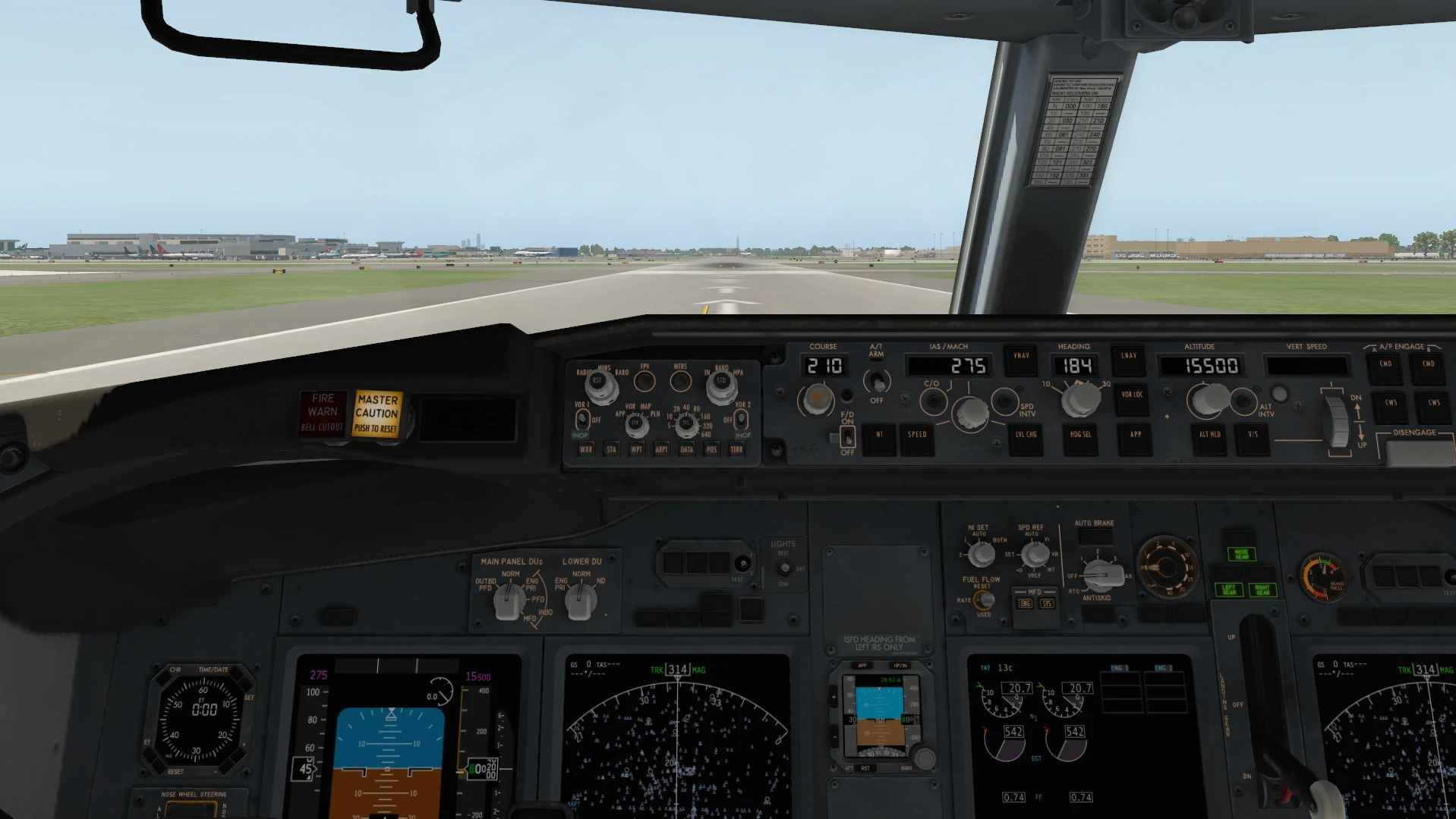
I used to jump right into X-Plane 11, fired up my Logitech Extreme 3D Pro joystick, and took off without much pause. But my virtual skies weren’t always friendly. My aircraft veered left unexpectedly, causing panic more than once.
That drift wasn’t just a one-time thing. Every takeoff, my plane’s nose would swing left, throwing off my line and definitely not looking good on my pilot record. Imagine the frustration! I figured it was a joystick problem and I couldn’t figure out why at first.
🎥 Before calibration: aircraft veering during takeoff
Turns out, it was all about calibration and trim. My controls had a mind of their own because I hadn’t given them proper attention. That joystick needed some TLC—tender loving calibration. 👉 If you’re still figuring out your setup, this How To Customize Flight Simulator Settings To Your Skill Level can help you fine-tune controls and avoid common issues. When I tweaked those settings, it was like waking up to a new day.
ATC wasn’t on my side, either. My transponder was stuck on standby, refusing to play nice. Hence, communication went south, and I found myself getting repeated instructions. Rookie mistake, anyone?
All these hiccups taught me that a checklist wasn’t a chore but a lifesaver. Ignoring these early warnings only led to stressful flights. Putting a solid pre-flight routine in place became my priority, ensures the lift-off is smooth and stable.
Trim and Joystick Calibration (Fixing Control Issues)
Resetting the trim before every flight is now my go-to move. The trick here is to ensure the aircraft starts its journey on a level playing field, literally. Retrimming before takeoff ensures that I’m not fighting the controls to keep things steady.
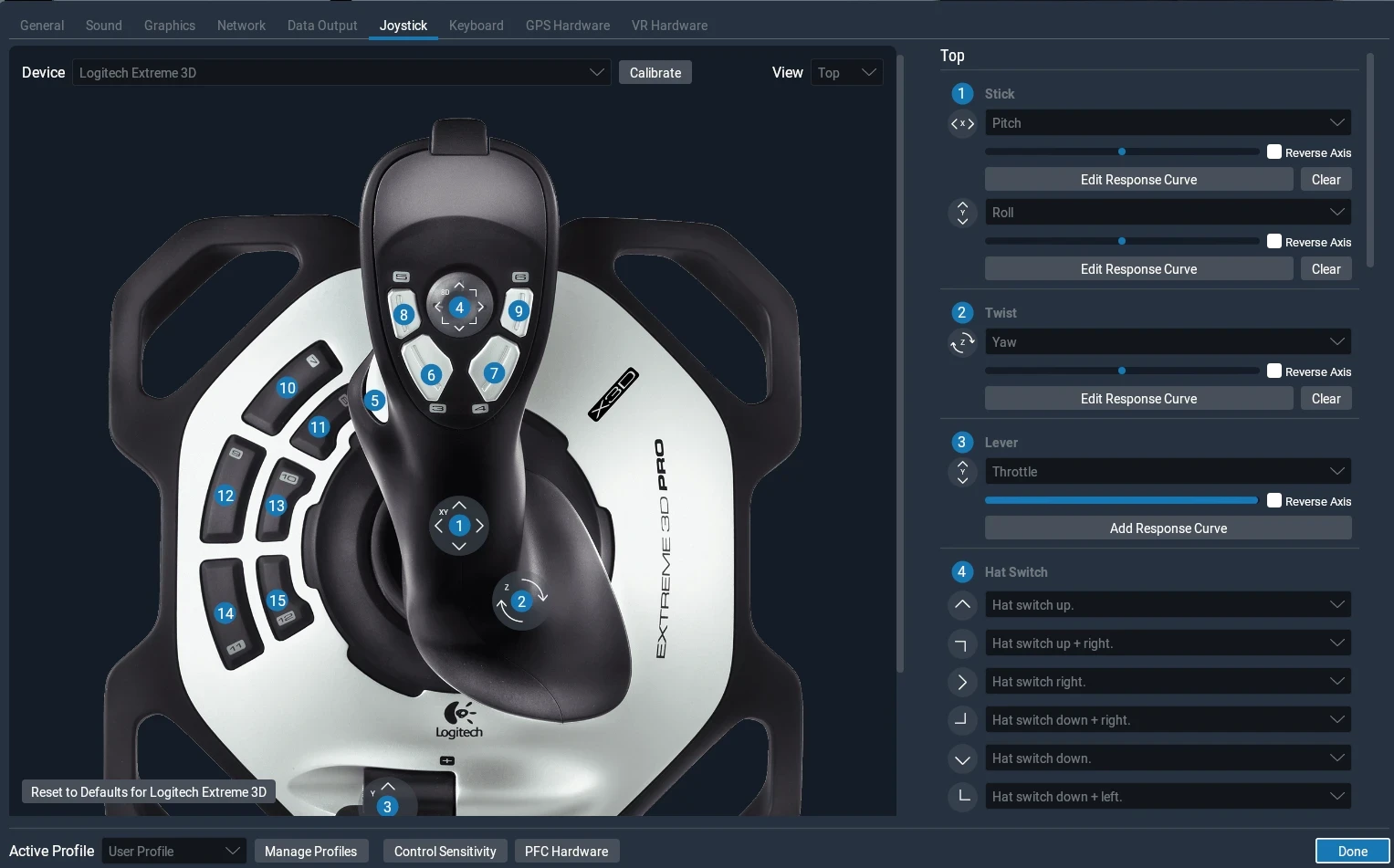
The Logitech Extreme 3D Pro is a nifty piece of gear, but it didn’t just plug and play out of the box for me. Oh no, it was more of a plug-and-veer-left situation. To tackle that, calibrating the joystick was a revelation. Roll sensitivity was my main target. I adjusted it from 0.50 to a sweet spot between 0.35 and 0.40, which worked wonders.
🎥 After calibration: stable takeoff with corrected dead zone
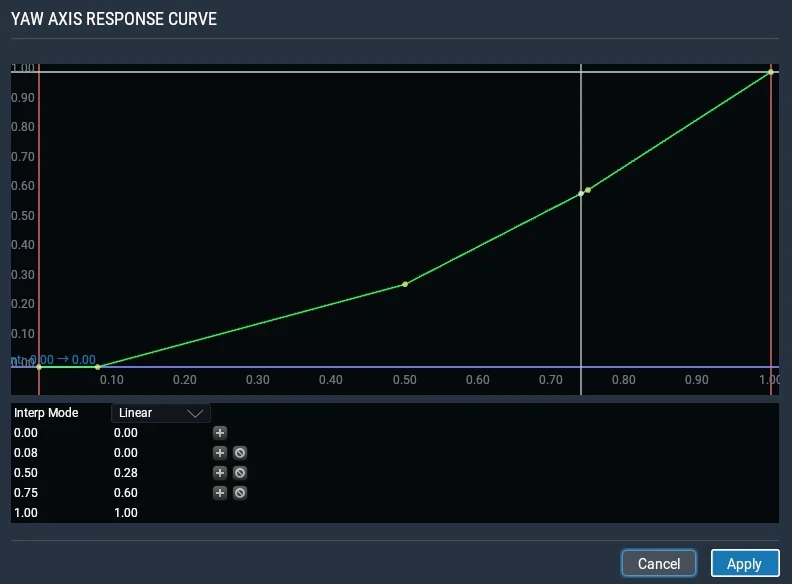
Creating a dead zone was another game-changer. This means setting a small area in which joystick movements don’t affect the aircraft’s control surfaces. 👉 I go deeper into this in my Custom Joystick Configurations For Flight Sim – Setup, Sensitivity & Control Guide where I explain dead zones and sensitivity in more detail.This helps in maintaining steady flight paths, especially when I’m not holding the joystick dead center. No more overcorrections every time I sneezed or shifted in my seat!
The change was immediate and noticeable. The aircraft stayed true to its intended path during takeoff. This simple calibration step removed a lot of unnecessary stress and gave me more control over my flight experience.
Making these calibration adjustments transformed my flying sessions, turning what used to be guesswork into precise control. The difference in handling has been like night and day, and I wouldn’t fly without checking my joystick settings now.
Barometer and Altitude Setup (Mistake I Made)
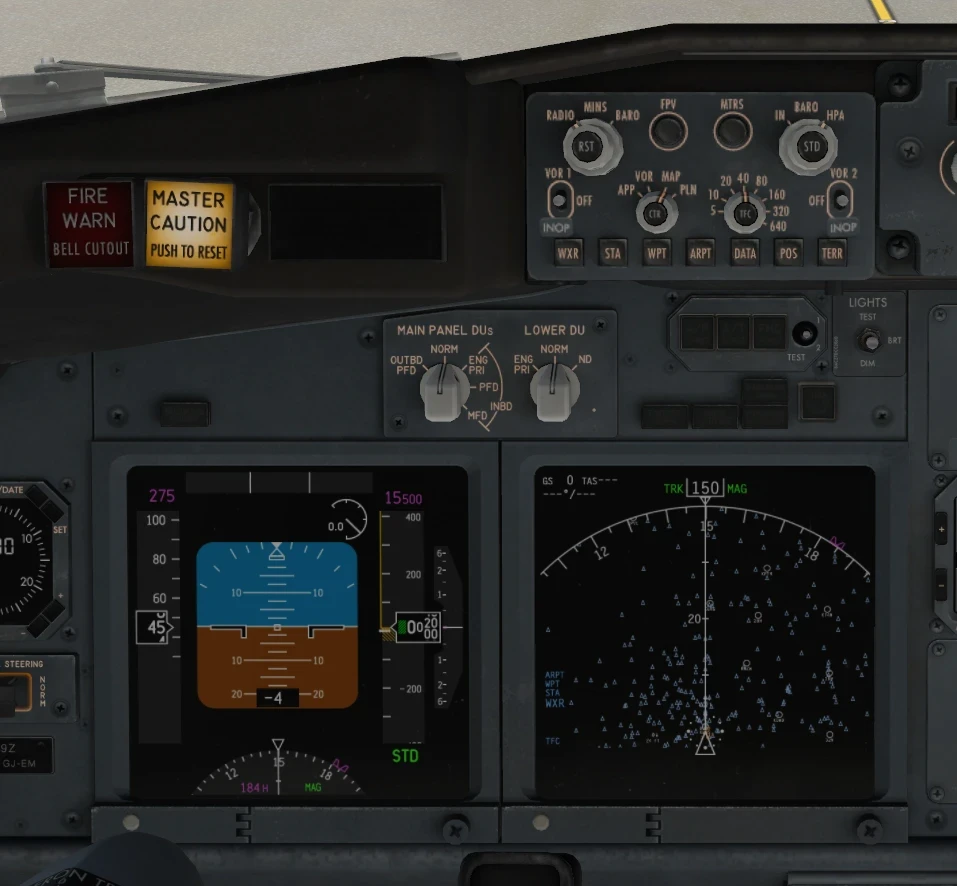
The barometer setting was another oversight I learned the hard way. Picture flying without knowing exactly how high you’re cruising. Spoiler: not fun. Forgetting to switch to the STD setting threw off my altitude readings, messing with my entire flight plan. This becomes even more important when flying complex routes—especially when using proper navigation tools like those discussed in Flight Simulator Navigation Tools for Beginners.
This might seem minor in a simulator, but it’s critical. Altitude discrepancies can mess with everything from judging your approach to interacting with ATC, which sometimes led me to descend too soon or climb too late. Trust me, getting told you’re at the wrong altitude isn’t a message you want to hear during a flight.
To avoid these altitude headaches, adjusting the barometer is now a mainstay on my checklist. I keep an automatic reminder to flip it to the standard pressure setting right after figuring out my flight path or route details. It’s a tiny step but a big deal for accuracy when flying.
At one point, I thought I was clearing terrain, but my altitude reading was wrong due to incorrect barometer settings. Ensuring real-world precision, even in simulation, is key for practicing procedures. As part of my pre-flight groove, I always verify that barometer setting—makes things smoother right from takeoff to touchdown.
Transponder and ATC Setup (Problem I Didn’t Notice)
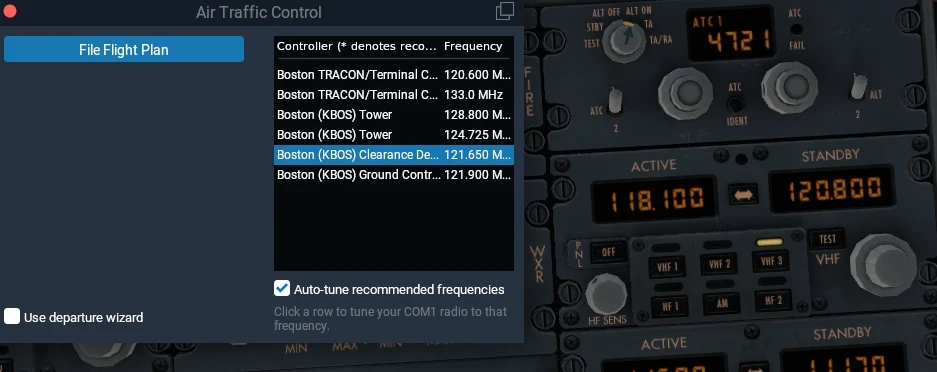
Having the transponder in the right mode is important, but I learned that it wasn’t the only issue affecting communication with ATC.
At first, I thought the problem was simple — my transponder was on standby. So I switched it to ALT (Mode C), expecting everything to work. But even after doing that, ATC kept repeating the same squawk instructions over and over.
That’s when I realized the issue wasn’t just the transponder mode.
The real problem was the radio frequency.
After switching to the correct ATC frequency, the repeated squawk messages stopped. But then something else happened — I wasn’t getting proper instructions like when to descend or when to contact the next controller.
I could still hear other aircraft talking, but not instructions directed at me.
Only after tuning back to the correct assigned frequency for my flight phase did ATC start giving me proper guidance again.
This lines up with how ATC systems work — they assign squawk codes to identify aircraft, but communication still depends on being on the correct frequency.
Now my pre-flight and in-flight checks include both:
- Transponder set to Mode C (ALT)
- Correct squawk code entered
- Correct ATC frequency tuned for the current phase of flight
Since making these changes, ATC interactions have been much more consistent, and I no longer get repeated instructions or missing guidance during the flight.
Final Checks Before Takeoff (Flaps, Speed, Autopilot)
Flaps and speed settings might seem straightforward, but overlooking them is like leaving your laces untied before a run. I establish the correct flap setting to ensure the lift-off is smooth and stable. Dialing in the right speed setting has also saved me from a few premature and shaky takeoffs.
Ensuring the autopilot settings, especially A/T (auto-throttle) and speed, are correctly configured is another unmissable step. I’ve been there when not setting these right led the plane on a joyride I didn’t intend to take. Making sure the A/T is on and the target speed aligns with my flight plan guarantees a controlled ascent.
This pre-takeoff checklist gets everything in harmony, ready to hit the virtual skies without surprises. Rechecking these systems are set as per plan takes just a moment, but this helps avoid problems during takeoff and climb.
Despite it being a simulator, practicing the discipline of these checks emulates real-world protocols and enhances the immersion. If you want to take realism even further, improving your setup with the right gear can make a big difference—see Enhancing Pilot Skills With Custom Sim Equipment. Following these steps helps translate all those knobs, gauges, and levers into an orderly, sweet takeoff into the virtual blue.
My Full Pre-Flight Checklist (Simple Version)
Here’s the rundown of my pre-flight checklist that ensures my experiences in X-Plane 11 are thrilling for all the right reasons and not left up to chance. This simple sequence covers everything that’s tripped me up in the past, turning each flight into operation.
- Reset trim before takeoff
- Check joystick calibration (roll: 0.35–0.40)
- Ensure dead zone is set
- Set barometer (STD)
- Set transponder to Mode C
- Configure flaps and speed
- Check autopilot (A/T and speed)
Calibration is next, double-check that my Logitech Extreme 3D Pro is set up just right. I verify the roll sensitivity is between 0.35 and 0.40 and ensure the joystick is resting in its dead zone to prevent unplanned movements.
Setting the barometer correctly is a must to avoid altitude confusion. A quick reminder to flip to the STD setting ensures accurate readings, crucial for keeping everything on track, from takeoff to landing.
Then, I get the transponder out of standby and into mode C, confirming ATC can see my position and preventing any communication hiccups along the way.
Checking the flaps and speed settings is vital to figuring out the lift-off and making sure everything is configured to match the plan for a stable takeoff. Lastly, the autopilot gear, like A/T and speed, are in check and aligned with my intentions for those vital first moments in the air.
Running through my checklist may seem like extra effort, but it’s really just a few minutes to make sure the flight goes without a hitch. Keeping it simple and structured turns each session into a seamless adventure full of the thrill of flight without the chaos!
✈️ Build a Habit That Saves Every Flight
What started as small mistakes—drifting on takeoff, wrong altitude readings, and missed ATC communication—turned into a valuable lesson: skipping pre-flight checks leads to unnecessary problems.
Once I built a simple checklist and followed it consistently, everything changed. My takeoffs became more controlled, my altitude stayed accurate, and communication with ATC finally made sense. It wasn’t about flying better overnight—it was about preparing better before every flight.
The truth is, flight simulation rewards discipline. Even small steps like resetting trim, checking calibration, or setting the barometer correctly can make a noticeable difference.
If you’re experiencing similar issues, don’t ignore them. Take a few minutes before each flight and run through your checklist. You’ll spend less time fixing problems in the air—and more time actually enjoying the flight.
Start simple, stay consistent, and refine your checklist as you gain experience. That’s how smooth, stress-free flights begin.