
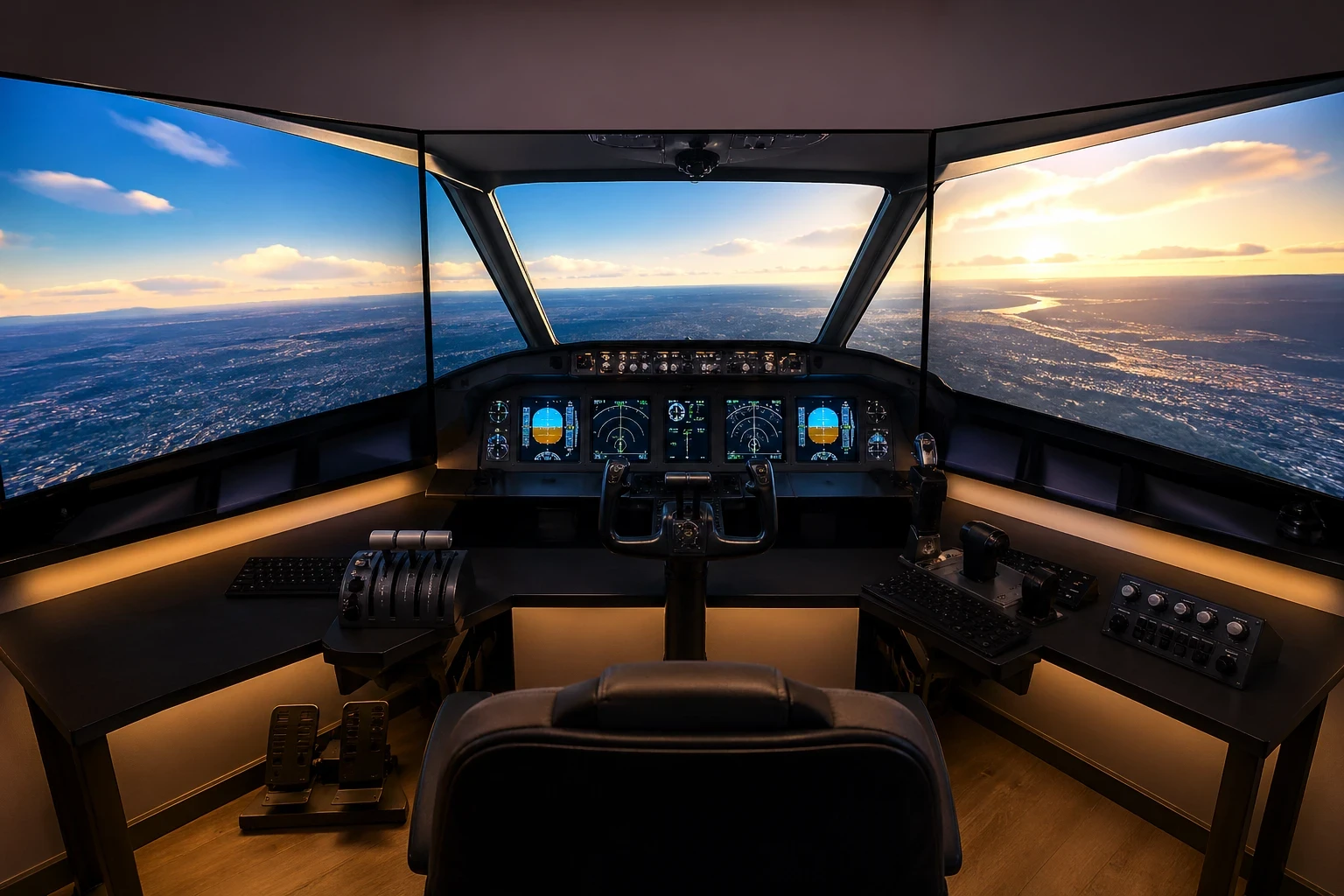
A multi-monitor setup can completely change how your flight simulator feels. Instead of a limited forward view, you get a wider field of vision that improves immersion and makes it easier to track your surroundings during flight. That’s exactly what a multi-monitor setup can help you achieve. This kind of rig gives you a wider field of view, amps up your immersion, and boosts your situational awareness when you’re soaring through the virtual skies.
So, why go through the trouble? A single monitor works fine, but it can feel restrictive, especially during taxi, turns, and final approach. With multiple monitors, your view expands, making it easier to maintain awareness of runway alignment and nearby traffic. A multi-monitor setup throws open the hangar doors, wrapping you up in the glory of spatial awareness. You can really get the vibe of what pilots see and feel inside the cockpit, making those flight hours way more realistic. For more insight into how pilots rely on visual awareness and perception, you can refer to this FAA spatial disorientation safety guide.
Now, before you splurge on more screens, take a moment to understand the various types of configurations you might encounter. You can choose between a single ultra-wide monitor or a dual or triple screen setup. Ultra-wide displays offer a seamless image, while multiple monitors can provide a wider wraparound view that feels closer to a real cockpit. A single ultra-wide might be all glossy and cinematic, whereas multiple separate screens can wrap around you like you’re right there in the pilot’s seat.
If you’re wondering whether this setup is for everyone—not necessarily. The added realism is great, but it’s not always about eye-candy. It’s also about enhancing how you interact with your sim, especially for folks knee-deep in competitive or professional flight simming.
Having a clear understanding of the benefits and tradeoffs of each option will set you on the right course. Just keep your expectations realistic and match them with what your setup can handle. A mind-blowing flight sim experience doesn’t have to blow up your wallet or your brain trying to make it work smoothly.
Choosing and Preparing Your Hardware
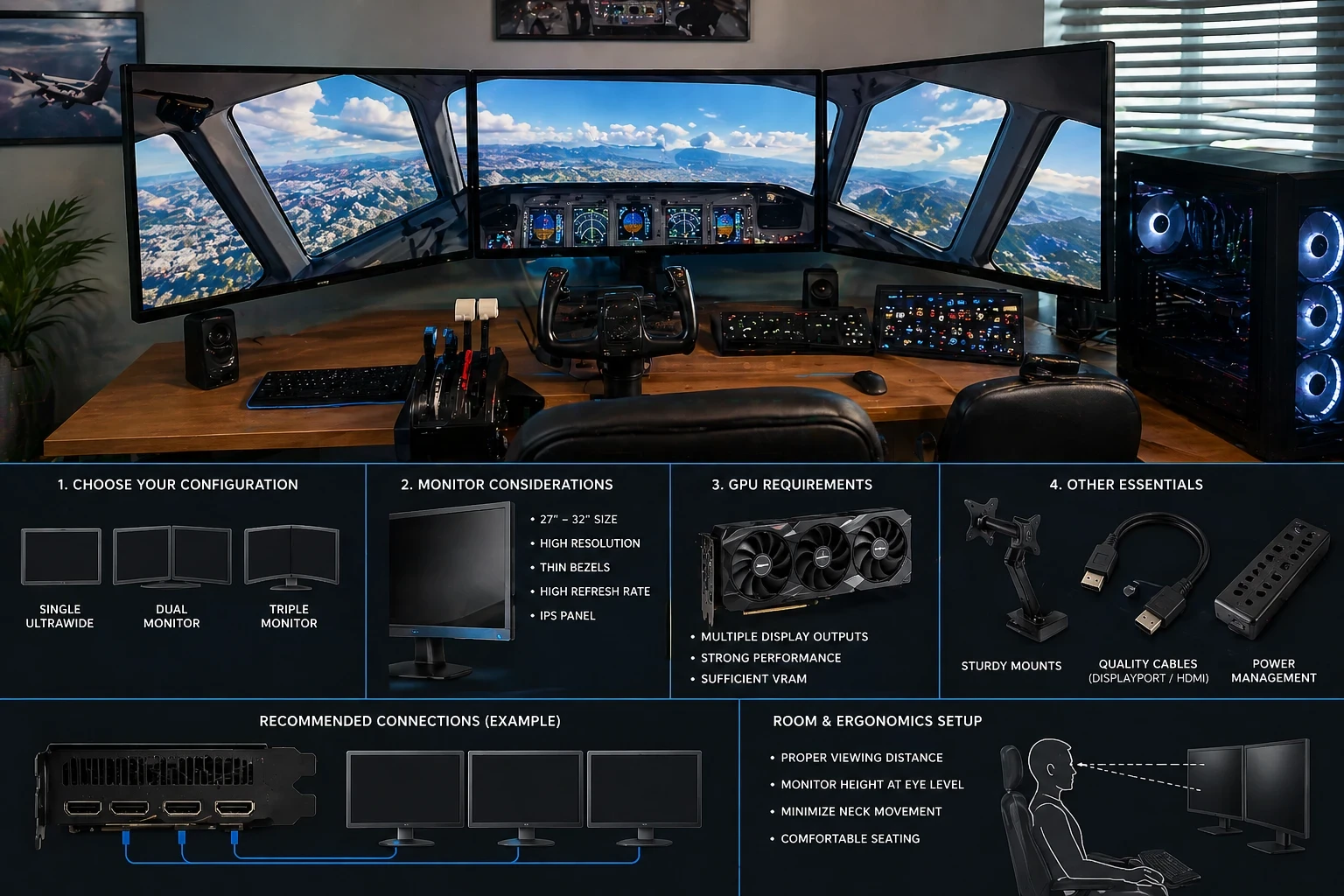
Getting your multi-monitor setup just right goes hand-in-hand with picking the right gear. Let’s start by figuring out the right configuration. Whether it’s single ultra-wide or a set of dual or triple monitors, each has its perks and I’m here to help you make sense of it all.
Think of single ultra-wide monitors as the easy way out. They provide a seamless view without those pesky bezels dividing your attention. But a few larger separate screens can offer a more engulfing experience, making you feel like you’re right in the cockpit. What’s crucial here is knowing what your flight sim needs and matching it with what your space can handle.
Now, onto the techy bits. Your GPU plays a major role in a multi-monitor setup. Running more screens increases the workload, so it’s important to make sure your system can handle the extra resolution without affecting performance too much. You’ll need enough output ports for additional monitors. Keep in mind that more monitors mean more demand on your system, potentially affecting performance. Make sure your setup can manage the resolutions you want without causing your FPS to tumble. If you’re unsure about GPU requirements, you can check benchmarks and recommendations on Tom’s Hardware.
When it comes to choosing monitors, size and resolution can’t be ignored. Bigger screens bring the world closer but note the desk space they need. Thin bezels are a win, cutting down on the visual splits between screens. Refresh rates matter too, especially if you’re into smoother visuals over longer journeys.
Planning your physical layout is just as important as choosing the monitors. Proper alignment, viewing distance, and height can make a big difference in comfort, especially during longer flights. You’ll want to ensure that when you’re seated, there’s little neck strain from looking around. Ergonomics matter—monitor alignment, viewing distance, and height shouldn’t be afterthoughts. A comfortable setup makes room for longer, more enjoyable sim flights.
Connecting and Configuring Your Multi-Monitor Setup
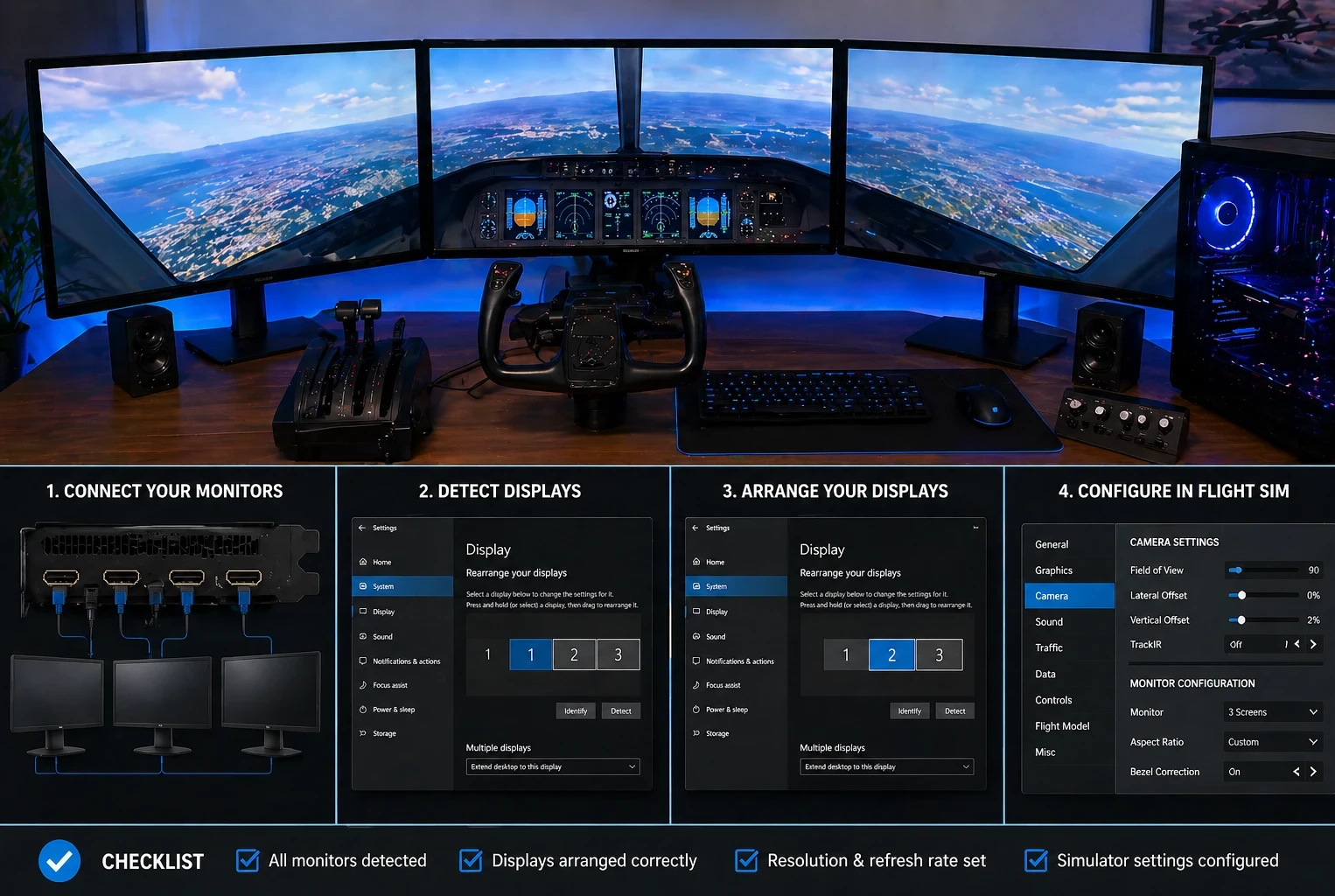
Once you’ve got the right hardware in place, it’s time to get them talking to each other, and trust me, this is where proper setup becomes important. Connecting multiple monitors isn’t just a plug-and-play deal. You’ll need to adjust a few settings to make sure everything works smoothly together.
First step: check your graphics card to see how many monitors it can support. You’ll need to connect each one and ensure they’re recognized in your operating system’s display settings. Remember, it’s not just about hooking them up; it’s about setting them up right, so they mimic a real-world cockpit experience as closely as possible.
Head into your computer’s display settings to arrange each screen. Set them to the correct resolution so your digital domain doesn’t look like a misaligned or inconsistent display layout. Monitors around your setup should form a seamless visual flow, giving that panoramic view that makes multiplayer dogfights and solo flights alike a thrill.
Different simulators have their own quirks when handling multiple displays. Whether you’re soaring in X-Plane 11/12 or Microsoft Flight Simulator 2020/2024, each has preferences and settings. For example, X-Plane offers native multi-monitor configuration options, while Microsoft Flight Simulator relies more on a multi-window setup system. Dig into the sim-specific tweaks to properly configure field of view and minimize distortion. It’s a bit mystifying with so many options, but align everything well, and you’ll thank me later.
Camera alignment and field of view (FOV) settings are key to avoiding those warping effects you might’ve heard about. You’ll need to tinker a bit to dodge those stretched views that ruin immersion. Aligning cameras and FOV might prove to be a steep curve initially, but hey, it pays off when you’re navigating through complex airspaces.
Getting this just right will ensure less hassle mid-flight. It’s a bit tedious, but when done right, sitting at the helm of your new multi-monitor setup turns into the most rewarding leg of your virtual journeys.
Optimizing Performance for a Seamless Experience
You’ve got your visuals set up, but now it’s about squeezing the best performance out of your gear without frying your GPU. Balancing power and performance becomes essential once you’re playing across multiple screens.
Go easy on your graphics settings to keepyour system from struggling during flight. Crank them to the max, and you might see your FPS drop faster than a nosedive. Resolution scaling is your friend here; tweak it to find that sweet spot between visual quality and smooth gameplay.
Your hardware might not be top-tier, but with some crafty settings adjustments, your sim experience can still be stellar. Keep your frame rate in check by adjusting shadow quality, draw distance, and other demanding settings. Sometimes, less can be more when you’re aiming for smooth flights.
Consider the impact of running your sim on multiple displays. Each additional screen demands more from your GPU. To mitigate this, work on optimizing your system’s graphics through real-world efforts—you might need to lower some settings or find innovative ways to offload some graphics processes. You can also find real-world performance discussions and optimization tips from experienced simmers on flight sim triple monitor setup discussion.
Forget what myths might tell you; you don’t need an ultra-high-end rig to achieve good performance. Often, just finding that right balance is enough to make your flying sessions smooth and enjoyable without compromising too much on looks.
Budget-friendly upgrades and solutions are out there. Whether it’s a simple case of updating drivers or tweaking existing hardware settings, you might be surprised by what your system is capable of once you put in a bit of effort.
Troubleshooting and Avoiding Common Mistakes
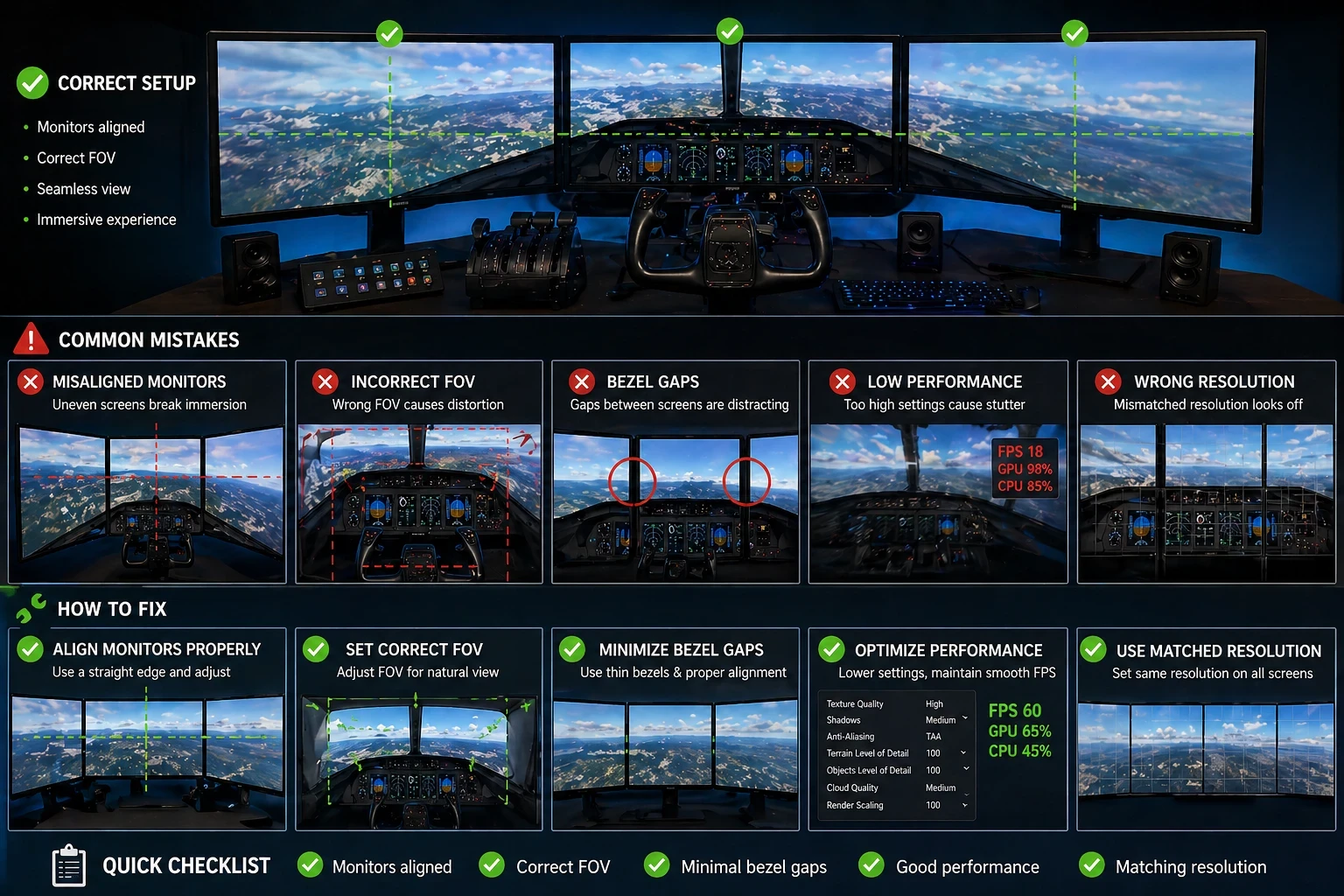
Like any setup, multi-monitor configurations can have a few issues at first, setting up a multi-monitor system can have its bumps too, but nothing you can’t smooth out with a little guidance. Let’s tackle some common missteps folks often encounter when getting these setups rolling.
Misaligned monitors are a biggie. It’s all too easy for your screens to be just a smidge off, causing inconsistency in your view. Take the time to perfectly align your monitors, ensuring edges meet precisely. Even a few millimeters off can lead to headaches, both literal and figurative.
Another frequent issue is the wrong FOV. Incorrect settings can lead to warped perspectives that would make even the calmest pilot’s nerves tangled. Check your FOV settings carefully to maintain a natural view, avoiding the midnight oil frustrations of a stretched horizon.
Overloading your GPU is another pitfall. Piling on settings without considering your hardware’s capabilities is a sure way to burn out your performance. Keep an eye on your system’s temperatures and performance metrics—overworking your GPU can lead to everything from crashes to fried hardware.
Bezel issues can steal away immersion faster than a power outage. Thin bezels help, but you’ll still need to configure your displays to avoid drawing attention to those divides. Configuring bezel correction in the system settings can help smooth out the experience, making transitions between screens less jarring.
Remember, the goal here isn’t just about aesthetics. It’s about getting a setup that feels real and works seamlessly with your system’s limits. Practical steps beat shiny new tech every time when it comes to creating a truly immersive and headache-free flight simulation experience.
Final Thoughts: Build a Setup That Works for You
A multi-monitor setup can take your flight simulation experience to another level, but it doesn’t have to be complicated or expensive to be effective. The key is understanding what you need—whether it’s better visibility during landing, improved situational awareness, or a more immersive cockpit feel.
From choosing the right hardware to configuring your displays and optimizing performance, every step plays a role in how smooth and realistic your setup feels. Small adjustments, like proper alignment or fine-tuning your field of view, can make a bigger difference than simply adding more screens.
If you’re still building your setup or looking to improve specific areas, take your time and upgrade step by step. A well-balanced system will always perform better than one that’s overloaded with features you don’t actually need.
What You Can Do Next
Now that you understand how multi-monitor setups work, the next step is to apply it to your own simulator.
- Review your current setup and identify limitations
- Adjust your monitor layout and FOV settings
- Test performance and fine-tune graphics settings
If you want to continue improving your simulator setup, you can explore more practical guides and step-by-step tutorials on Flight Sim Essentials , including hardware tips and configuration advice that can help you get better results without unnecessary upgrades.