
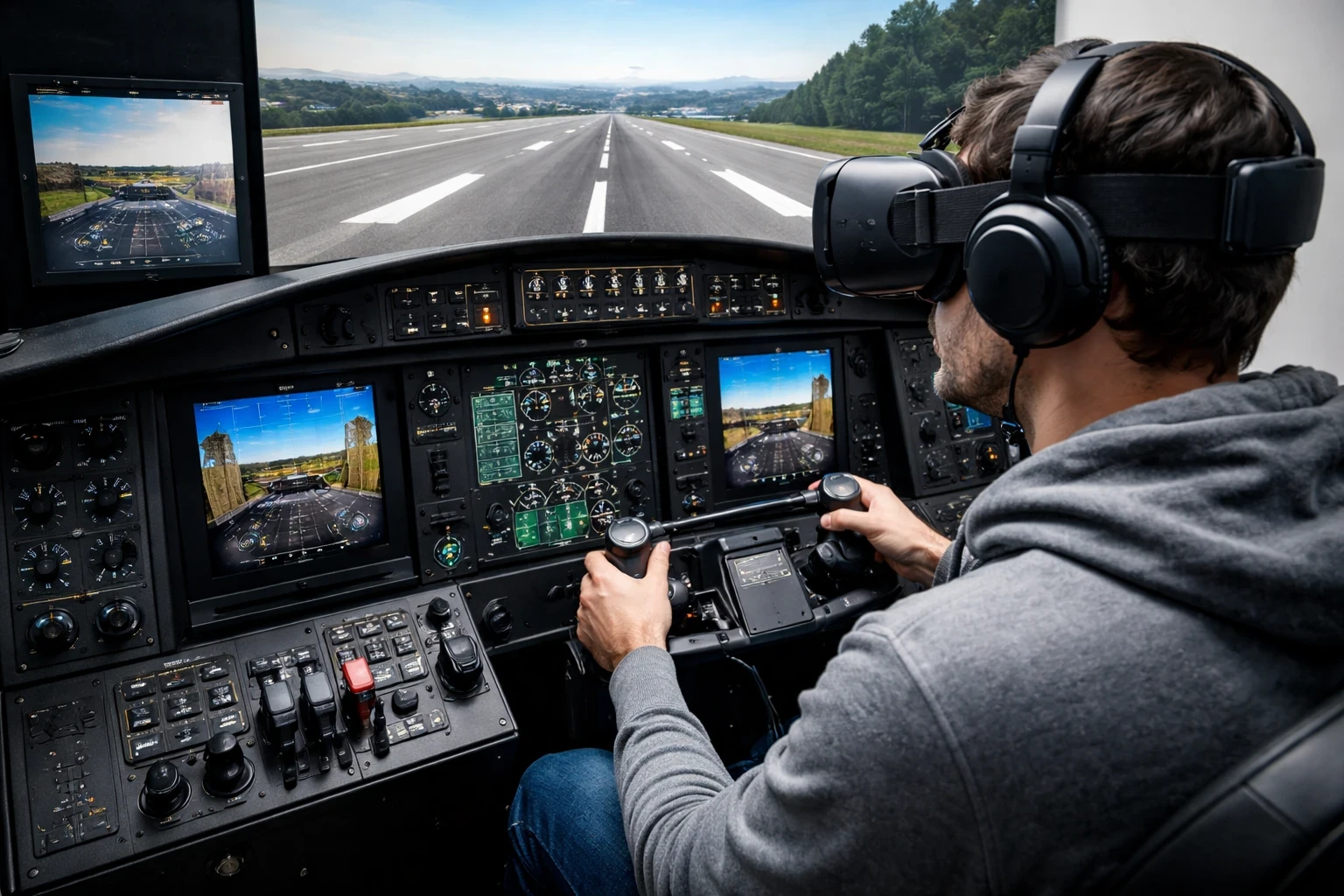
Virtual Reality in flight simulators can feel incredibly immersive, but it doesn’t always run as smoothly as expected. One thing I noticed quickly is how performance drops become more noticeable in VR, especially near detailed airports. You might be on final approach with full scenery loaded—buildings, traffic, ground vehicles—and suddenly the frame rate starts dipping. In VR, that kind of stutter feels much more obvious than on a regular screen.
And it’s not just the frames per second taking a hit during intense moments; ever notice those brief pauses or that slight jitter when you’re smack-dab in the middle of air traffic? It’s like playing peek-a-boo with the scenery right outside your cockpit window—doesn’t help when you’re trying to show off those top-notch piloting skills.
To keep your virtual flying ship-shape, think about dialing back those detail levels a bit. More details mean more to process, and in VR, less might just be more. I’ve found that dropping a few settings, like shadows or building density, can work wonders for maintaining that buttery-smooth experience. If you’re still fine-tuning your setup, this ties closely with performance tips covered in your guide on optimizing sim performance and hardware setups. For a closer look at different setups, I’ve covered this in my guide on VR options for a next-level sim experience, including what works best depending on your system.
I’ve noticed similar performance drops near detailed airports, especially in X-Plane 11. Even without VR, heavier scenery can cause lag, and in VR this becomes even more noticeable—especially when using add-ons. If you’re planning routes into busy hubs, tools like Little Navmap can help you preview routes and avoid overly dense areas before loading into the sim.
Visual Clarity: Seeing is Believing
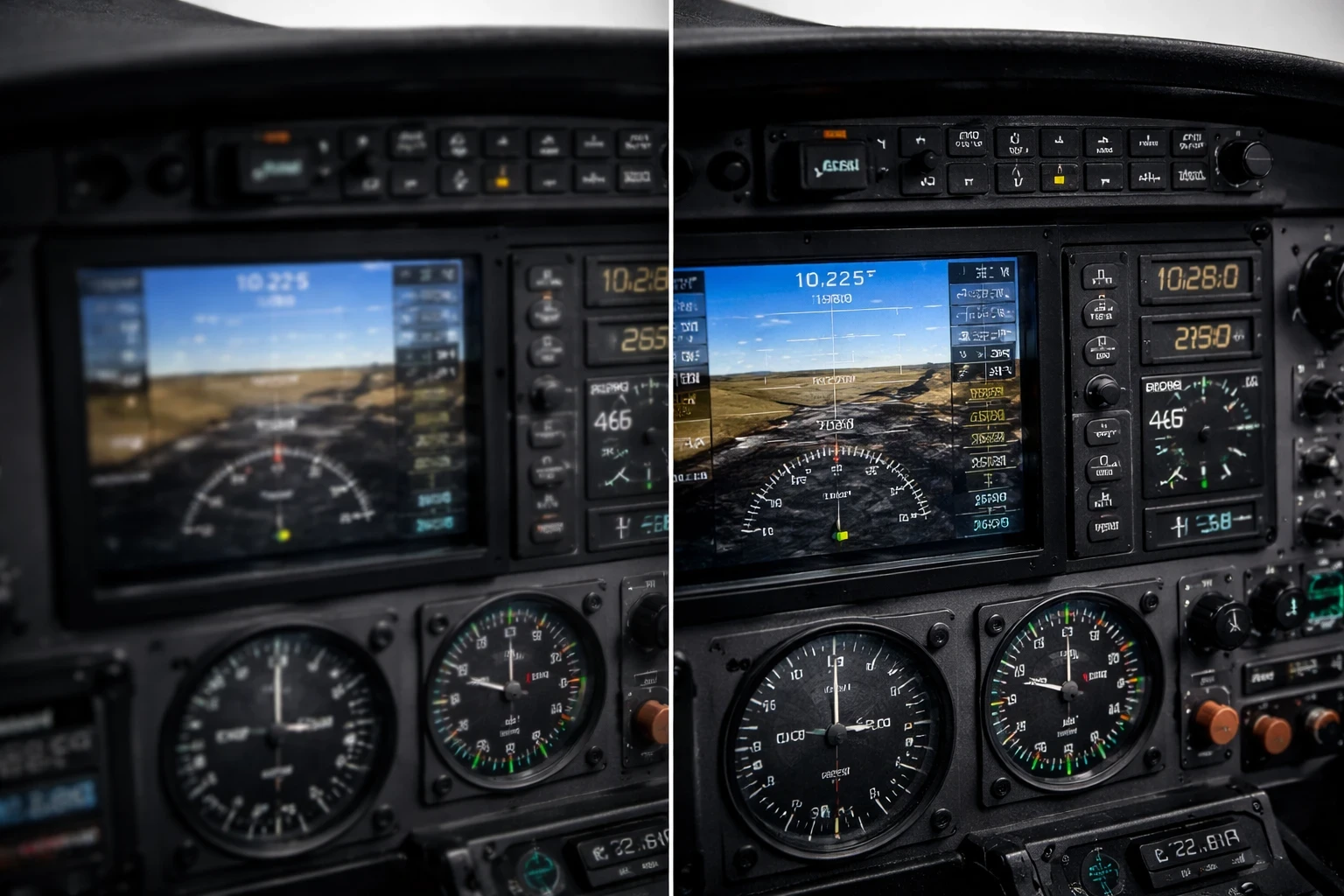
Getting into the cockpit in VR feels great until you try to read smaller instruments. If the resolution or settings aren’t right, gauges like the altimeter or heading indicator can look slightly blurry, which makes quick checks harder than they should be.
Dynamic lighting adds flair but can throw a curveball your way. Shadows flicker, and bright instrument lights might glare at just the wrong angle. It creates an environment where adjusting your seating position a few inches forward or back makes all the difference.
Sometimes to get things just right, balancing clarity with performance is the name of the game. Extra detail can tank your frames, while less detail might clear the runway for smooth operations but at the cost of missing that key toggle in your peripheral vision. This becomes especially important if you’re flying aircraft with glass cockpits, which are discussed more in your beginner setup and aircraft guide.
Something I find invaluable is giving the eyes a break. If things look blurry, pausing for a moment often helps them refocus. It’s similar to when you take off those new pair of glasses after wearing them too long: everything slowly comes back into view.
If you’re feeling the strain, play around with your settings. Adjust render scales and make sure your IPD (interpupillary distance) is set correctly in the VR headset. For real-world weather conditions that can also affect visibility in sim, tools like Windy can give you a better idea of what to expect before flying. These tweaks can make a cloudy cockpit virtual world into a sunny day.
Simulators Morph in Virtual Reality
Virtual reality introduces a wild twist to the experience, making each simulator feel like a different beast. Now, I know comparing simulators might sound like splitting hairs, but the differences become striking when you strap on a VR headset.
Take X-Plane 11 and X-Plane 12, for example. X-Plane 11 might offer a familiar feel for old pros, but X-Plane 12 brings an updated interface and improved physics that can make those takeoffs and landings feel notably different. Then there’s Microsoft Flight Simulator 2020/2024 (MSFS)—it doesn’t just look stunning, but the way it simulates weather alone could have you flying through a hurricane while sitting on your couch.
Navigating the unique challenges VR poses, like handling UI elements, can make or break the vibe. In some sims, switching between panels or adjusting settings mid-flight can be a breeze; in others, it’s a juggling act without hands. This is where personal preference truly shines through. If you’re still deciding which simulator suits your setup, you might want to compare them alongside your simulator comparison content.
The flight dynamics each simulator brings change how lifelike and responsive your plane feels. In VR, this can turn an ordinary thrust or bank into an immersive thrill ride or leave you constantly adjusting to compensate for over-sensitive controls.
Here’s my advice: spend some time exploring different sims to find the one that clicks with you. Each one offers something unique in VR, so sampling them can help pinpoint which suits your flying style best. Whether it’s photorealism, accurate physics, or simple straightforward controls you’re after, there’s a VR compatible sim out there promising a smooth flight.
The Depth Perception Dive When Landing
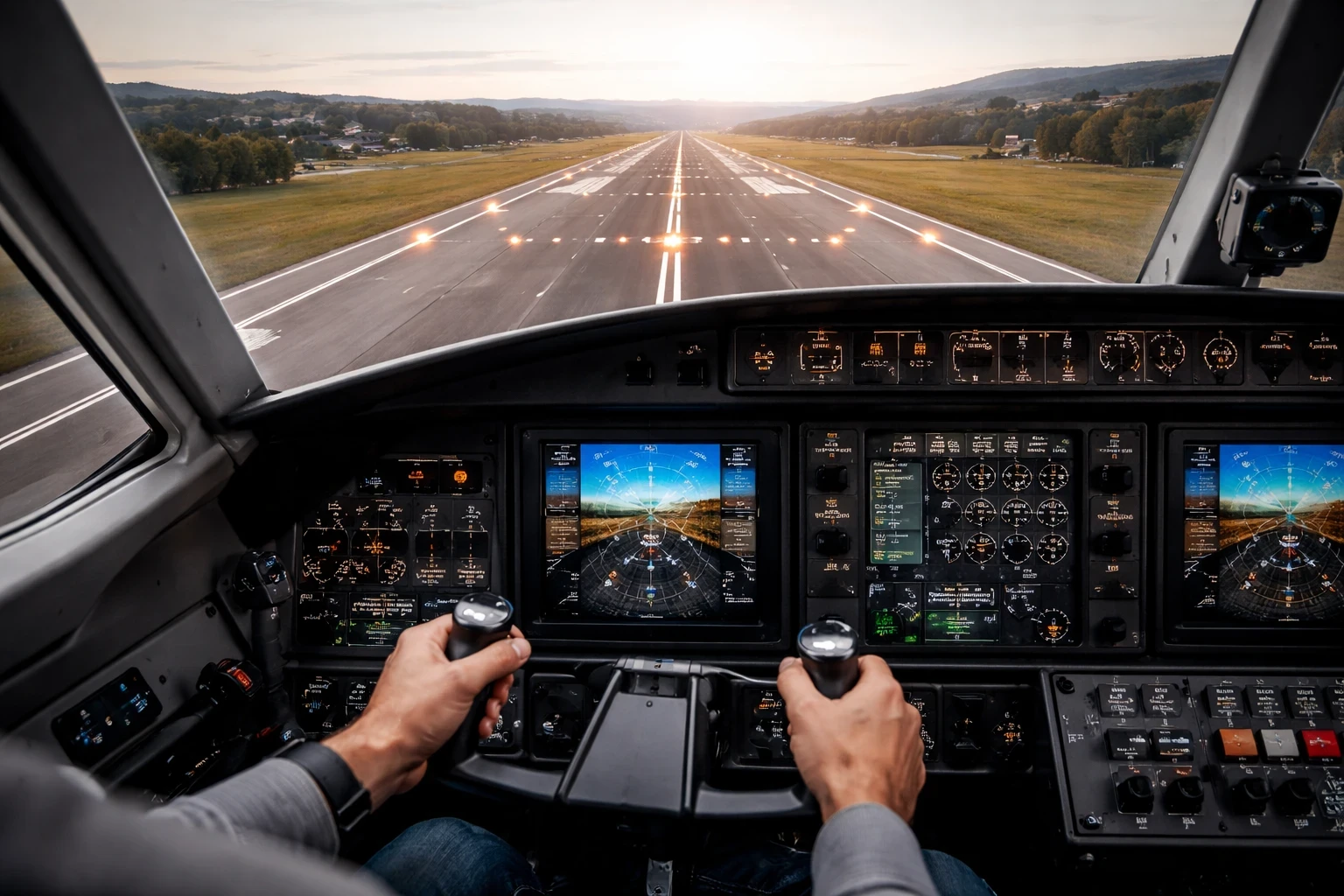
Landing in VR feels very different because of depth perception. You get a much better sense of distance compared to a flat screen, which helps with flare timing and runway alignment. Suddenly, those thrilling descents aren’t just about hitting the right numbers—they’re about feeling the altitude change as you approach the runway.
Depth perception offers a tangible sense of how far away you are from the ground, which ups the realism factor when you’re in the cockpit. Now, when you’re coming in for a landing, those gradually rising trees and runway lights don’t just look closer—they feel closer, giving you a better handle on managing descent rates and throttle adjustments.
Proper use of peripheral vision becomes a game-changer in VR. With my headset on, I’ve found that focusing less on the exact spot where I’ll touch down, and more on the surrounding environment, improves my landing accuracy. Those subtle cues—like a skyline adjusting on the horizon or the pattern of runway lights—give vital info on speed and angle.
Bringing some real-world instincts into virtual landings helps bridge the experience gap, and using spatial awareness to make smoother touchdowns is super satisfying. No more “where exactly am I?” moments that break the immersion!
A little tip for nailing those VR landings: stay relaxed and avoid tunnel vision. Tunnel vision can be a sneaky culprit for misjudging distances, so spreading your vision across the full view in front of you ensures you’re taking in all that key info the VR’s trying to provide.
Overcoming the Physical and Mental Toll of VR Sessions
VR sessions can become tiring over time, especially during longer flights. Motion sickness doesn’t always happen, but when it does, it usually starts with small signs like slight dizziness or eye strain.
The key is catching those early signs and taking a break before discomfort builds up. A short pause can make a big difference.
Setting up properly from the start helps as well. A comfortable chair, correct headset positioning, and good posture all contribute to a better experience.
To reduce strain:
- Adjust brightness and contrast
- Take short breaks
- Keep sessions manageable
If you’re planning longer flights, using tools like SimBrief can help you prepare routes ahead of time so you spend less time adjusting things inside VR.
With a bit of adjustment, VR can stay immersive without becoming tiring.
✈️ Final Thoughts on Flying in VR
Virtual reality adds a whole new layer to flight simulation, but it’s not just about visuals—it’s about how everything feels in the cockpit. From performance drops near detailed airports to improved depth perception during landing, VR changes the way you interact with the sim in ways that aren’t always obvious at first.
In my experience, getting the most out of VR comes down to balancing performance, clarity, and comfort. Small adjustments—like tweaking graphics settings or improving your setup—can make a big difference in how smooth and enjoyable each flight feels.
If you’re planning to get into VR or improve your current setup, take some time to experiment with different configurations and see what works best for your system and flying style.
👉 I’ve also covered more details on choosing and setting up VR in this guide on VR options for a next-level sim experience, which can help you get started or fine-tune your setup.