
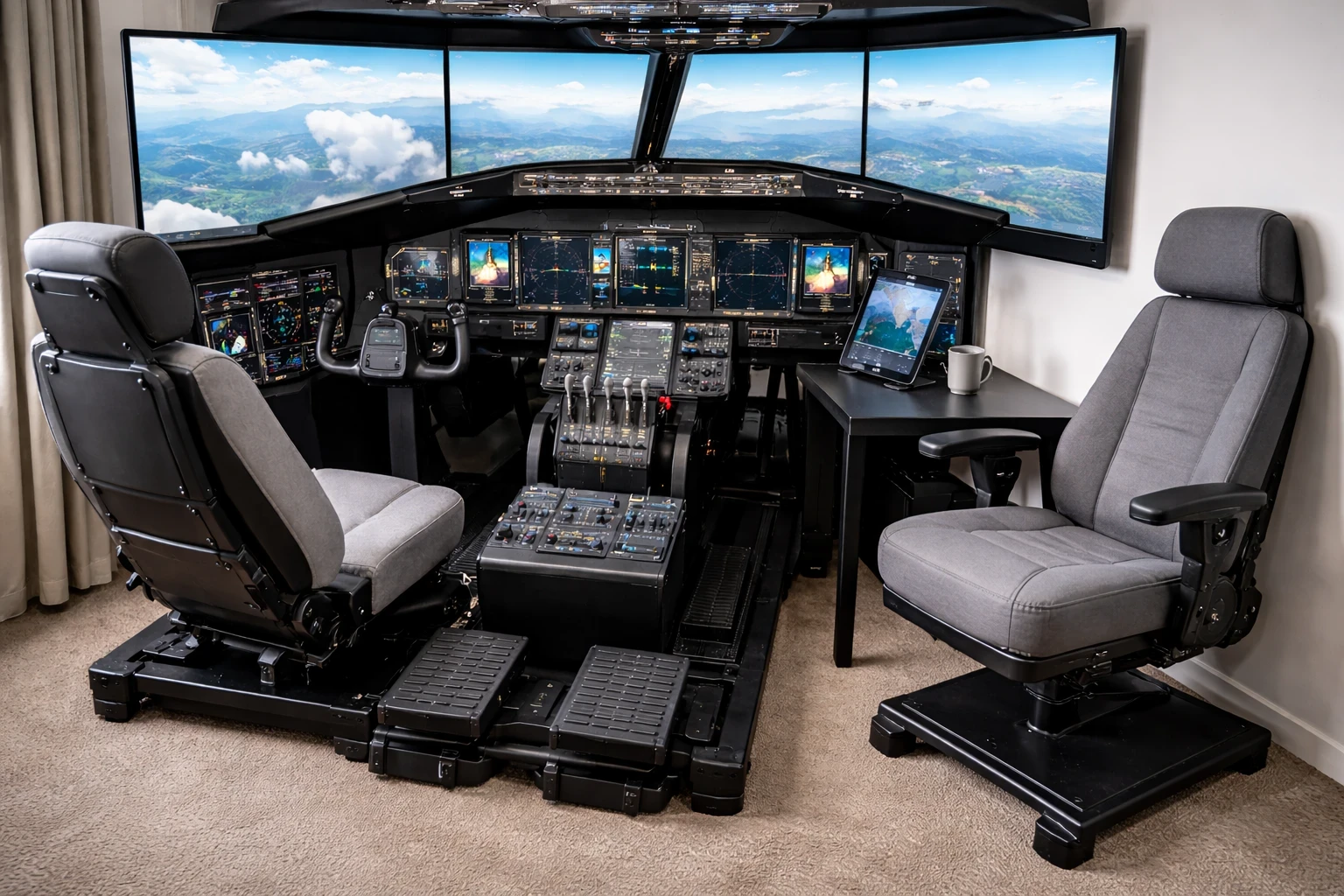
Getting your flight simulator hardware right is like laying the foundation for everything else. If the setup isn’t balanced, you’ll feel it immediately in performance and control. You’ve got options—entry-level, mid-range, or advanced—but what matters most is choosing something that actually fits how you plan to fly, not just what looks impressive.
In my case, I started with a basic joystick setup and gradually realized that control precision matters more than having an advanced-looking setup. Even with a simple configuration, the experience improved significantly once everything was properly adjusted and balanced.
Entry-level setups are the budget-friendly way to get started, especially if you’re still figuring out whether flight simulation is something you’ll stick with. A simple joystick is enough to get in the air and learn the basics without a big investment. A structured approach like this beginner guide on starting flight simulation on a low-end or mid-range PC helps set expectations early and makes the first setup much easier. Mid-range setups are where things start to feel more realistic. This is usually where adding a yoke, throttle quadrant, and even rudder pedals begins to make a noticeable difference in control and immersions. This level hits the sweet spot between performance and cost, getting you a more immersive feel without breaking the bank.
If you’re aiming for a more complete cockpit experience, advanced setups take it further with higher-quality controls, better ergonomics, and more precise input. At that point, it becomes less about playing and more about replicating real procedures. It could include a high-end yoke system, full-feature throttle quadrants, and advanced rudder pedals. Plus, the fancy gear often has better ergonomics and build quality, giving you that real-deal cockpit vibe.
Speaking of the “real deal,” understand the difference between a joystick and a yoke. Joysticks are flexible, usually more compact, and often preferred for fighter jets in the sim world. I’ve been using a joystick for years, and it’s still reliable, but I noticed that certain aircraft—especially larger ones like the Boeing 737—feel more natural with more precise control inputs, particularly during approach and landing. Meanwhile, yokes often feel more authentic for commercial aircraft simulations. A deeper comparison like this breakdown of customizable control yokes vs joystick helps clarify what works best depending on your setup and aircraft type.Finding the right fit takes some time. From what I’ve seen, a joystick works well for flexibility and limited space, while a yoke feels more natural for airliner flying. It really comes down to what aircraft you plan to fly most.
Throttle quadrants and rudder pedals add another layer to the realism. During turbulence or crosswind landings, having better control precision makes a noticeable difference. Even with a basic setup, small and steady inputs helped maintain control more effectively than overcorrecting. They’re about bringing more precision to your simulation, allowing for better control and a bigger rush when things get turbulent or tricky. Plus, they’re crucial for practicing maneuvers and developing those essential piloting skills. A closer look at the best throttle quadrants under $400 highlights some solid options that balance realism, durability, and value. Putting thought into the gear that brings your simulation to life makes all the difference in creating a truly immersive experience. Putting thought into the gear that’ll bring your simulation to life makes all the difference in creating a truly immersive experience.
Setting the Standards: Understanding System Requirements
Flight simulation isn’t just about controls—your PC plays a huge role in how everything feels. On my previous laptop, I couldn’t run newer simulators properly, and even installing them was a struggle. After upgrading to a mid-range system, I found that X-Plane 11 ran smoothly on higher settings, as long as I avoided heavy add-ons. Even with a good setup, performance can make or break the experience. Let’s break down what those system requirements mean and why they matter. Basically, there’s a difference between the minimum and the recommended specs for your PC. Running a simulator on minimum specs might get it working, but it won’t feel smooth or realistic. In most cases, aiming closer to recommended specs gives you a much better experience, especially during busy scenes like takeoff, landing, or heavy weather.
Your CPU, GPU, and RAM are like the holy trinity in the flight sim world. For the CPU, think of its core count and clock speed. Many sims require strong processing to handle complex physics and fluid dynamics. A good GPU is essential, not just for pretty visuals, but to keep everything moving smoothly at high resolution—preventing those annoying stutters in mid-flight. And about RAM, more is generally better. It helps handle the larger textures and complex courses without the simulator lagging or skipping. A deeper look at flight simulator performance optimization explains how these components affect stability and smoothness.
Performance isn’t just about visuals—it directly affects how the aircraft behaves. When performance drops, you’ll start noticing stutters or delayed responses, especially during critical phases like approach or descent. When your system isn’t up to snuff, you might notice lag or stutter—not ideal when you’re cruising at 30,000 feet, right?
Matching your tech specs to the simulator’s needs bridges that gap between just playing a game and feeling like you’re actually piloting through the skies. So while building or upgrading your setup, keep a keen eye on those system requirements. It’s the bedrock for everything you’ll do in the sim, making each flight smooth, engaging, and as true to life as possible.
Fine-Tuning for Excellence: Optimizing Simulator Settings
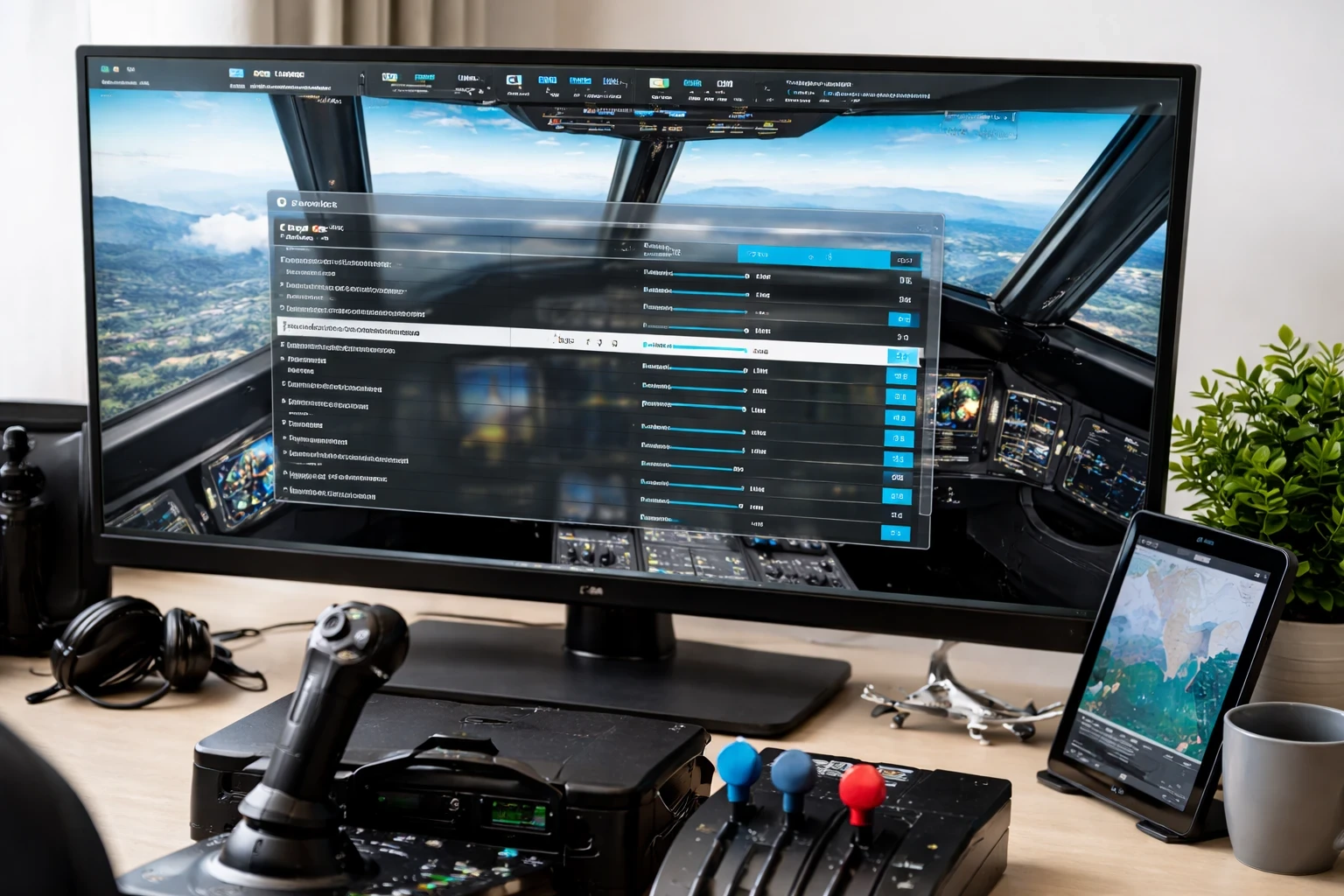
Fine-tuning your simulator settings is where you really start to see improvement. From my experience, running everything at maximum wasn’t necessary. I got much smoother performance by keeping settings like world objects slightly below maximum while maintaining high overall visuals. Once I started adding weather and scenery add-ons, I could immediately see the performance impact, especially in busy areas or during storms. Small adjustments can make a big difference in both performance and overall smoothness.Consider graphics settings as a starting point—finding that sweet spot between performance and visuals is key. Options typically range from low to ultra, and which you choose can significantly impact your gameplay.
Let’s talk world objects, shadows, and textures. Cranking these settings up can add depth and realism, making every cityscape, mountain range, and cloud look more lifelike. It’s tempting to push everything to maximum, but that usually isn’t the best approach. Higher settings can look great, but they also put more load on your system, especially when combined with add-ons.
Finding the right balance between visuals and performance takes some testing. Adjusting things like shadows, world objects, and textures gradually helps you find a setup that looks good without sacrificing smooth performance. Maybe turn down shadows a notch if things feel too sluggish, or keep textures high, but dial back on post-processing effects. Each adjustment can shave milliseconds off rendering time and make your sim run smoother.
One feature worth exploring is the simulator’s native resolution scaling. It’s a way to boost performance by rendering the game at a lower resolution while still displaying at your monitor’s native setting. This helps maintain clarity without overloading your GPU.
End of the day, the goal is to achieve a smooth, visually pleasing experience without your hardware gasping for air. It might take time to find your ideal setup, but it’s worth it for the enhanced realism and immersion—turning every session into a truly memorable flight.
Precision in Control: Configuration and Calibration
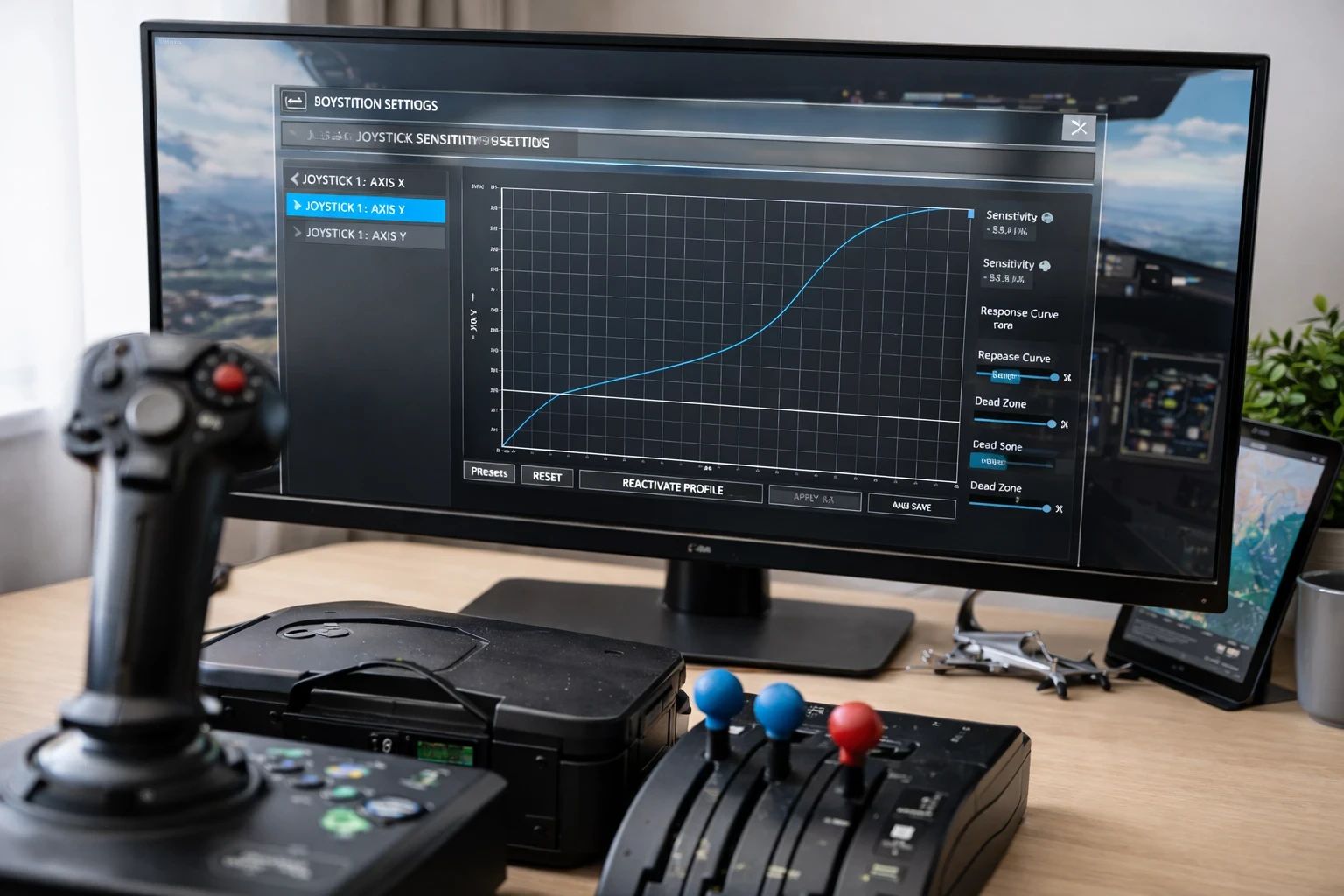
Getting your control configuration right is one of the most important steps, yet it’s often overlooked. I ran into an issue where the aircraft would constantly drift to one side, even when the joystick was centered. After adjusting the dead zone and sensitivity curve, the problem was completely resolved, and the controls felt much more stable, especially during landing.Properly setting up and calibrating your joystick or yoke to match your preferences is crucial for a realistic flying feel. Start by ensuring everything is physically connected right and installed correctly in your simulator software.
Dive into calibrating those controls. Most setups allow you to tweak dead zones, sensitivity curves, and responsiveness. Dead zones and sensitivity curves make a big difference. Without proper adjustment, even a small input can cause unwanted movement, which makes the aircraft feel unstable.
Responsiveness is another biggie. You want a system that reflects your control inputs realistically, without lag or delay. If your aircraft feels sluggish or overreacts, tweak your setup until it mirrors how you’d expect the real thing to feel.
Watch out for control instability, which might surface without proper calibration. If your controls aren’t calibrated properly, the aircraft can feel unpredictable—especially during turns or landing. Fixing this usually comes down to fine-tuning sensitivity and eliminating unwanted inputs.
Experiment with different settings until you find what best simulates real-world physics for you. Investing time here pays off every time you load up your sim, enhancing both the experience and your flying skills.
Flight Software Savvy: Selecting the Right Simulator and Enhancements
Choosing the right flight simulator depends on what you value most—realism, visuals, or overall performance.
- X-Plane 12 is known for its strong physics engine, making it a solid choice for those focused on aircraft behavior and handling.
- Microsoft Flight Simulator (2020/2024) offers highly detailed environments, advanced lighting, and realistic weather systems, making it ideal for visually immersive flights.
Each simulator has its strengths, and selecting the right one depends on how the setup will be used. For a more detailed breakdown, see Choosing The Right Flight Simulator For Your Needs.
Enhancements like flight planning tools, custom aircraft, and scenery add depth to the experience. Tools such as SimBriefand Little Navmap improve navigation and realism by introducing real-world routing and procedures. Understanding flight planning and navigation tools helps connect these systems to everyday flying.
X-Plane 12 is known for its strong physics engine, which makes aircraft handling feel more realistic, especially when focusing on flight behavior and control. This makes it a favorite among flight enthusiasts who prioritize aerodynamics and system accuracy. Microsoft Flight Simulator (2020/2024) focuses more on visual realism, with highly detailed environments, lighting, and weather systems that make scenic flying stand out. Its weather and lighting systems also add to this impressive realism, enhancing those scenic flights.
Understanding these key differences helps align your simulator choice with your personal flying goals and setup capabilities. A high-preference for graphics might incline you towards Microsoft’s offering, while a penchant for precise aircraft dynamics might have you lean towards X-Plane.
Elevate your simulation experience even more by diving into enhancements. Flight planning tools like SimBrief let you plot your courses just like a real pilot would, adding depth to each flight. Add-ons and plugins are also worth exploring. From detailed airports to realistic weather patterns, they can further intensify the realism.
However, remember to be selective with these enhancements. Too many can bog down your system, so it’s about picking quality over quantity. Choosing wisely ensures that every add-on works towards creating an epic, seamless flight experience without dragging down performance.
🔑 Bringing Your Flight Simulator Setup Together
Building a flight simulator setup doesn’t have to be complicated or expensive right away. What matters most is creating a setup that feels smooth, responsive, and enjoyable to use over time. Starting simple and upgrading based on what you actually need leads to a much better experience than trying to build everything at once.
Every improvement—whether it’s adjusting your settings, calibrating your controls, or upgrading your hardware—adds up and makes your flights feel more realistic and controlled.
👉 If you’re looking to improve your setup further, take a look at the different hardware options, performance tips, and tools covered throughout this guide. Small changes can make a noticeable difference in how your simulator performs and feels.